2017年8月1日星期二

How to Rip DVD for ARCHOS with DVDFab DVD Ripper

If you are an ARCHOS owner and want to watch your DVD movie on your ARCHOS device, you can turn to DVDFab DVD Ripper. DVDFab DVD Ripper is a professional DVD ripping tool that can convert and rip DVD to various audio/video formats and devices. It contains some ARCHOS profiles, therefore it can convert DVD to ARCHOS easily and quickly. Now let's have a look at the process of ripping DVD for ARCHOS.

Step 1: Load the source
Run DVDFab 10, go to Ripper module and load the source.


Step 2: Choose the ARCHOS profile
Navigate to the profile library on the top left corner of the main interface and choose Device> PVP> ARCHOS 605. You can also choose other profiles such as ARCHOS AV300 according to the model of your ARCHOS.


Step 3: Customize your video
After the source is loaded in, the longest title, namely the main movie, will be selected by default. But here you can choose other titles. You also can choose the chapters, audio track, subtitles, and define the name of the chosen title. If you want, you can also click the “Advanced Settings” icon to customize your settings and click the “Editor” icon to edit the video.


Step 4: Select a directory and start the ripping process
Click the "folder" button to select a directory to save the output video. And then you can click the "Start" button to start the process of ripping DVD to ARCHOS.


Then what you need to do is to wait. You can enjoy the DVD movie on your ARCHOS in a few minutes.

DVDFab also provides DVD copy solution, and if you want to know how to copy DVD, you can go to How Do I Copy a DVD to have a look.

2017年7月28日星期五

Review : DRM Removal Software from DVDFab

As much as the closed operating system, that is the Apple iOS, is good for protecting the integrity and security of applications installed within it’s tightly controlled ecosystem; such encapsulation also greatly limits the ability of Apple device owners to enjoy media that they acquired outside of the Apple “bubble”.

Apple’s DRM protection technology (i.e. Fairplay), specifically, is what prevents owners of Apple devices from playing back or converting movies, songs, games and other media that they acquired elsewhere.

Fortunately, it is possible to get around the overly-strict Fairplay technology. Doing so requires DRM removal software.

We recently tested one such product – the DRM Removal software for Apple.

One thing that we noticed immediately was how easy the product is to use. A lot of people who are not overly tech-savvy often give up on tasks such as DRM removal because they assume it to be an advanced technical task.

That is not the case with the DVDFab DRM removal software. The product interface is very intuitive so there is barely any learning curve, even for novice users.

Below are the few steps it takes to go DRM-free.


Download the DVDFab DRM removal software. The software is available for both PC and Mac, and comes with a 30-day free trial.


Once you’ve downloaded and launched the software, you will be brought to the DVDFab dashboard.


On the dashboard, select – Utilities —> DRM Removal

On the DRM Removal screen you will see two icons – one for video and one for music.


Once you’ve chosen the type of media that you wish to remove the DRM from, the next step is to load the file that you wish to work with.
You can load the file from your file system or directly from iTunes.


Once you’ve loaded the file, simply click the “Start” button at the bottom of the screen, and wait for your file to be released from the clutches of DRM


A few additional observations:

We found the conversion speed of DRM removal quite fast, especially taking into account that it is lossless

Batch Processing is another feature that we found quite useful when converting multiple files.

If you’ve been looking for a way to enjoy your non-Apple media on Apple devices, the DRM Removal for Apple software from DVDFab is a hassle-free way of doing it.

You can try it out yourself, using the 30-day free trial.

Here is the DRM Removal Software download link.

Enjoy your purchased songs of Apple seamlessly with DVDFab DRM Removal Software

Apple has its own DRM protection Technology called Apple Fairplay. On one hand Apple Fairplay helps in protecting your media files, on the other hand it defers users to enjoy their ‘Purchased’ songs videos, audio books on any unauthorized non-Apple devices. There are several methods by which users try to remove the DRM encryption from their devices. DVDFab DRM Removal for Apple is one such solution.
The software is available for Windows operating system and is compatible with Windows 7,8.1, Vista and Windows 10.
However, with DVDFab DRM Removal for Apple, is a potential DRM removal software available solution. Users can easily bypass Apple’s FairPlay and remove the DRM encryption from their legally purchased content in a flash. Remember, this process is nothing illegal and it only allows you to download your purchased songs. It removes the encryption from Apple music, videos, movies and audio books that play back flawlessly on popular music and video playback devices, such as portable music players, smart phones and tablets, etc.
You can try it for free. Only if you are convinced, you can purchase the app for $39. Here is a guideline on how to use the app.
1. First you have to download the DVDFab Removal software. Next, you have to install the application.
2. Next, click on Start DVDFab.
3. Now as the software opens, it will provide you with three options, Buy, Activate and Try. If you want to try the free version, click on Try. The software will open. Click on Utilities. As the dropdown menu opens, click on DRM Removal for Apple.
4. There are two options for DRM Removal of Apple media files, for Video and for Audio. If you want to remove DRM encryption from Videos, select “For Videos” else “For Audios”.

5. Now, click on “Add from iTunes”. You must have iTunes installed in the same machine in which you have installed DRM Removal for Apple. Here, you must remember on important point. To support seamless import of media files from iTunes, make sure the required setting is turned on. So, open iTunes, go to Edit, then go to Preferences. Now click on Advanced tab, and see if the option “Share iTunes Library XML with other applications” is checked.
6. As you import the files, click on Start located in the bottom of the app screen. In the bottom left corner of the app page, you will find the location where your audios and videos will be saved.
After the conversion is done, you will find the media files downloaded in the locations aforementioned.

The app is extremely easy to use with a very beautiful interface. The paid version is available for $39. If you are satisfied with the trial version, you may opt for the paid version which has more such options. Thee app is versatile and quick. Installation process and all other procedures are clear and self explanatory. We shall recommend our viewers to try the free version of DVDFab DRM Removal for Apple. you will be delighted to find how easily you can enjoy your purchased songs and videos of Apple to all your devices.

2017年7月27日星期四

DVDFab Review – DRM Removal For Apple


The DRM removal for Apple software from DVDFab is a tool that was designed to permanently remove the DRM protection that can be found embedded inside digital products that are offered by Apple from the Apple App Store.

Apple developed a proprietary technology for controlling the usage of digital products such as copyrighted music, movies and other software known as a DRM or Digital Rights Manager. Their technology was called Fairplay and it would only allow files that were encrypted with the FairPlay code to be used on devices that were Apple registered. This meant even if you bought the digital files legitimately you were limited on what devices you could play them on.

Key Features Of DVDFab‘s DRM Removal For Apple
Works on all versions of supported Windows OS; Vista/7/8/8.1 and 10 (both x32 and x64).
Supports file formats; M4V (video), M4P (Music) and M4B (audio books).
Requires an Internet connection to activate.
Capable of processing multiple files simultaneously.
Leaves digital content free of all embedded encryption.

Benefits Of Using DVDFab‘s DRM Removal For Apple
Allows you to transfer all of your downloaded files purchased through the Apple App Store on a non-Apple device.
Won’t affect the playback quality of any music or video files after it is run through it.

Speed through a large playlist or volumes of movies in one session.
It can be used in concert with other DVDFab programs like DVDFab Converter and DVDFab Creator.

Pricing
DVDFab is reasonably priced at just $39 per year. When getting started, you’ll receive a 30 day free trial period which is awesome. It’s important to point out that during the free trial period, you’ll only be able to convert 1 video and 5 songs.

My Final Thoughts
If you own a large amount of digital music, movies and audiobooks that you purchased over the years on a number of Apple mobile devices or iTunes enabled device and are wanting to move them to a non-Apple device you probably noticed that Apple has made this extremely difficult. This is because they have employed an embedded technology called a DRM or Digital Rights Manager.

Fortunately, there is a company called DVDFab and they have created a software tool that is designed to remove this embedded code that prevents any file that contains this DRM from being used on any device that has not been registered through Apple. The program is called DRM Removal for Apple and it is designed to be used on all Windows-based systems.

DRM Removal for Apple is a simple to use software that quickly and completely removes the FairPlay DRM that Apple embeds in all of the music, videos and audiobook files that are available in the Apple App Store. This DRM virtually locks up these files and keeps you from enjoying the things that you legitimately paid for and prevents you from playing on a non-Apple mobile device like your smartphone or tablet. DRM Removal for Apple is very easy to use and it can quickly clean the files of this limitation and it can do this for multiple files at the same time.

If you are interested in finding out more information about DRM Removal for Apple, just visit DVDFab website for more information.


2017年7月26日星期三

DVDFab Launches Holiday Special Offer: Save on All-In-One+ Movie Server

On July 21, Fengtao Software, the industry leader in the field of DVD, Blu-ray and video backup solutions, announces its Summer Holiday Special Offer. Offering a rarely seen chance for users to purchase its best-seller of all time — the lifetime version of DVDFab All-In-One package — and the stunning 4K UHD Blu-ray Player — DVDFab Movie Server — together at only $479, save more than  $747 than buying the two products separately, and another storewide 25 percent coupon applicable on all the shareware software products. Read on for the detailed information.

Save $747 to Buy DVDFab Movie Server + All-In-One Lifetime:

DVDFab All-In-One Lifetime is the No. 1 best-seller of Fengtao Software, because it packs 12 lifetime versions of its shareware products into one bundle. Namely, the DVD copy software, DVD ripper software, DVD creator software, DVD to Blu-ray converter software, Blu-ray copy software, 
Blu-ray ripper software, Blu-ray creator software, Blu-ray to DVD converter software, video converter software and three other products.

DVDFab Movie Server is the recent achievement of Fengtao Software in the field of home multimedia appliance. It is designed as a perfect life companion to the company’s multimedia software products DVDFab, as it allows its users to directly output the DVDFab 10 copied ISO files, including DVDs and Blu-rays, to a 3.5 inch SATA hard disk drive inside the Movie Server. With future versions of DVDFab 10 and the firmware upgrades of the Movie Server, more copy modes and modules are to be supported. By doing so, users can easily manage and organize their movie collections with the smart Poster Wall feature, and watch them with native menu support, all in one place.

During the Summer Holiday Special Offer time period, which runs until August 14, 2017, all customers can purchase the All-In-One Lifetime and the Movie Server together at only $479, saving $119 compared to purchasing those two products separately.

Storewide 25 percent off on All the Other Products:

In addition to the amazing offers mentioned above, users can also enjoy 25 percent discount buying any software product, single or bundles, including the media player software, 
Passkey software, PC backup software and the iOS data recovery software. The only one product which is excluded from the 25 percent discount is the Movie Server, which is specifically explained on its product page.

For the detailed terms and conditions of DVDFab Summer Holiday Special Offer 2017, please refer to: http://www.dvdfab.cn/promotion.htm .

About Fengtao Software:
Fengtao Software Inc., a professional multimedia software provider, has been dedicated to working on DVD cloner, DVD copy, Blu-ray copy, DVD ripper, DVD/Blu-ray conversion, video converter, DVD creator, Blu-ray creator, Blu-ray media player, etc. for more than 11 years with its well-known DVDFab software. It has more than 80 million global users.

More information at: http://www.dvdfab.cn.

News Source: Fengtao Software Inc

2017年7月21日星期五

Blu-ray to AVI Video Converter

To convert Blu-ray to AVI, you need to turn to a Blu-ray to AVI video converter. DVDFab Blu-ray Ripper is a professional Blu-ray to AVI video converter that can convert and rip any Blu-ray to AVI with minimal quality loss and at a super-fast speed. It is powerful, but it is pretty easy to use. The following is a step-by-step guide to show you how to convert Blu-ray to AVI with DVDFab Blu-ray Ripper.
Step 1: Load the source
Run DVDFab 10, go to Ripper module and load the source.
Step 2: Choose AVI profile
Navigate to the profile library on the top left corner of the main interface and choose Format > Video > AVI.


Step 3: Customize your video
After the source is loaded in, the longest title, namely the main movie, will be selected by default. But here you can choose other titles. You also can choose the chapters, audio tracks, subtitles, define the names of the chosen titles, and customize your settings. You are even able to edit the Blu-ray video with the built-in editor.


Step 4: Select an output directory
Navigate to the bottom of the main interface and click the "folder" button to select a directory to save the output video.


 Step 5: Start the ripping process
Click the “Start” button to start the process of ripping Blu-ray to AVI.
It is easy to rip Blu-ray to AVI, right? Just download DVDFab and try DVDFab Blu-ray Ripper freely!
This tip presents you how to convert Blu-ray to AVI video, but if you want to know how to convert video to Blu-ray, you can click how to make Blu-ray disc to have a look.

2017年7月20日星期四

Things You Need to Know to Clone a DVD

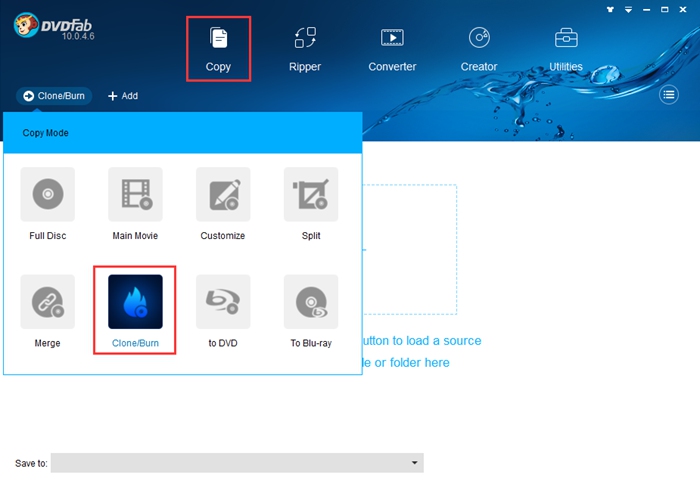
If you are a movie fan, you must have collected a stack of DVD movies. Do you want to clone these DVDs in case that they are lost or damaged? So how to clone a DVD? To clone a DVD, you need to prepare a DVD drive/burner, a blank DVD disc, and a software program that can clone DVD. As for the DVD clone software, I recommend you DVDFab DVD Copy. It is a professional DVD cloner that can help you clone DVD on Windows or Mac easily and quickly. Now let me show you how to clone a DVD with DVDFab DVD Copy.

Step 1: Choose Clone/Burn mode
Run DVDFab 10, go to Copy module and click the “Copy Mode” tab on the top left corner to choose Clone/Burn mode.


Step 2: Load the source
Insert the DVD disc to your optical drive and DVDFab will load it automatically.


Step 3: Select the output directory and start the clone process
Navigate to the bottom of the main interface and choose your optical drive as the directory from the dropdown list and then click the “Start” button.


Soon after, you can get a DVD copy which has the same content with the original disc. DVDFab can not only copy DVD but also rip DVD, and if you want to know how to rip and convert DVD, please go to Rip Any DVD with DVD Ripper to have a look.

Note:
During the process, the original disc will be ejected and DVDFab will prompt you to insert a blank DVD disc. Please just do as the instruction says.