2015年1月22日星期四

Free Video Converter

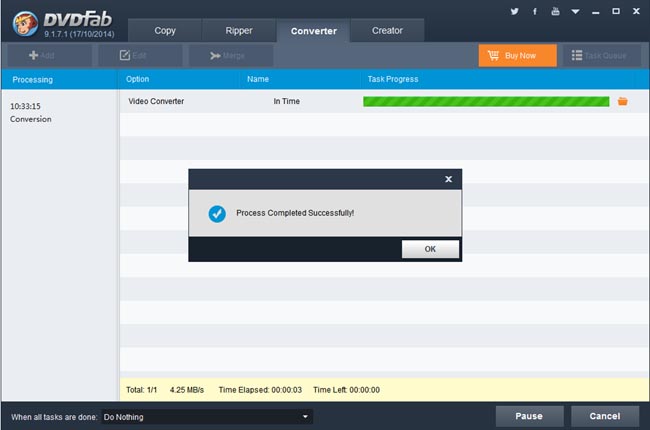
Are you trying hard to find a free video converter software? By free, it does not necessarily mean it is free of charge, instead, it should mean that it has the capability to convert all the known video formats from one format into another. DVDFab Video Converter is just that free video converter software you are searching everywhere.
 
Take a closer look on how to make it work for you:
 
Utilize Free Video Converter: Step 1 -> Download and install the latest DVDFab 9 onto your computer;
 
Utilize Free Video Converter: Step 2 -> Launch DVDFab 9, choose Converter option at the Option Interface (or from the Option Bar at the Main Interface), then load the video you are about to convert;
 
Utilize Free Video Converter: Step 3 -> Click the Profile Box (or Profile Icon) to find a proper profile from the built-in Profile Library and press "OK" button, then just hit “Start” button at the Main Interface to go converting.
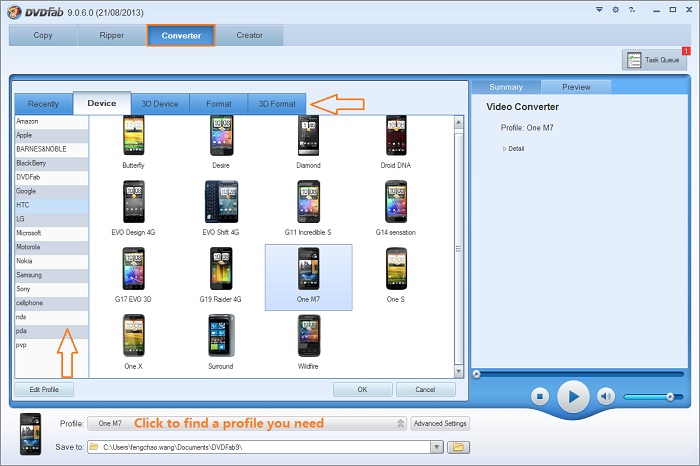
 
 
Note: 1. As you can see, there are a large bevy of pre-designed profile for all kinds of devices made by thousands of manufacturers all over the world, you just need to select the correct one you need.
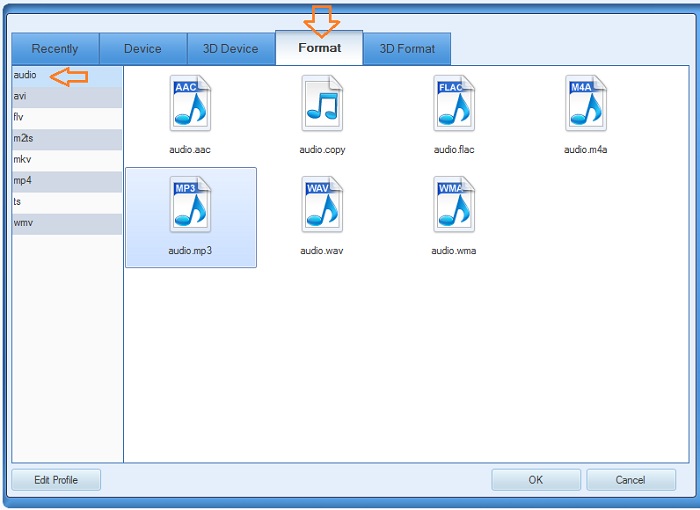
         2. If you need convert one video into some kind of audio file, you just choose one audio profile from the Format column and Audio section.
 
 
Software you need: The latest build of DVDFab 9
Product you need order: Video Converter
 
For more information, please go to DVDFab Video Converter page.


2015年1月21日星期三

How to Convert MP4 to MP3

You have some music videos that you want to hear them with your MP3 player? DVDFab Video Converter can help out. It can convert a MP4 file to a MP3 file fast, easily and professionally. If you are interested, please follow me now to have a look at this how-to tutorial step by step.
 
Convert MP4 to MP3 > Step 1: Start up DVDFab, go to Converter to choose MP3 profile
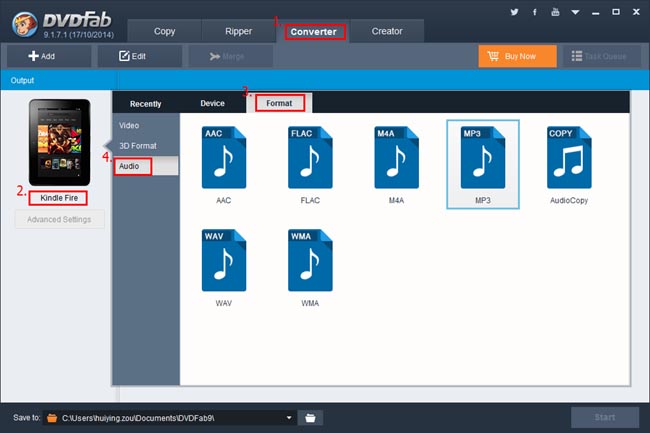
Start up DVDFab, go to Converter option. On the left panel click on the profile icon to open the profile library. We’re choosing Format -> Audio to bring about all supported audio formats. Just choose MP3.
 
Convert MP4 to MP3 > Step 2: Load in the MP4 video for conversion
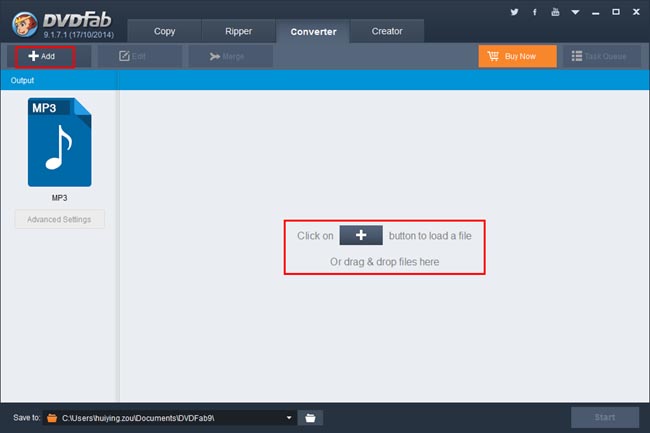
Click Add button to load in the source, or drag and drop the file from your PC into the program, and the MP4 video will be imported in after one or two seconds.
 
Convert MP4 to MP3 > Step 3: Do some setup if you would like
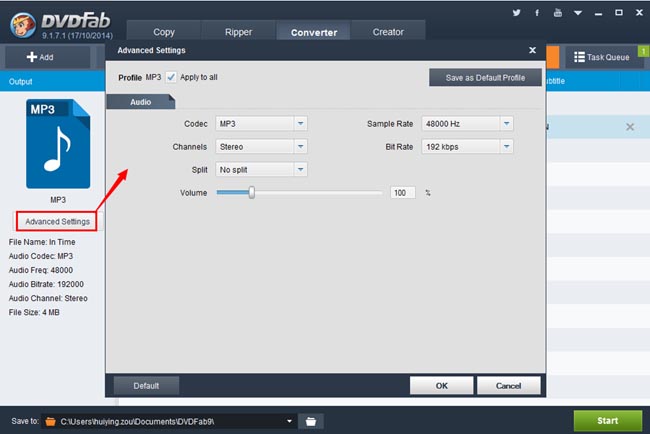
Click Advanced Settings button on the left panel to open a settings window, where you can set up audio parameters lick codec, channels, volume, bit rate, etc.
 
Convert MP4 to MP3 > Step 4: Start conversion
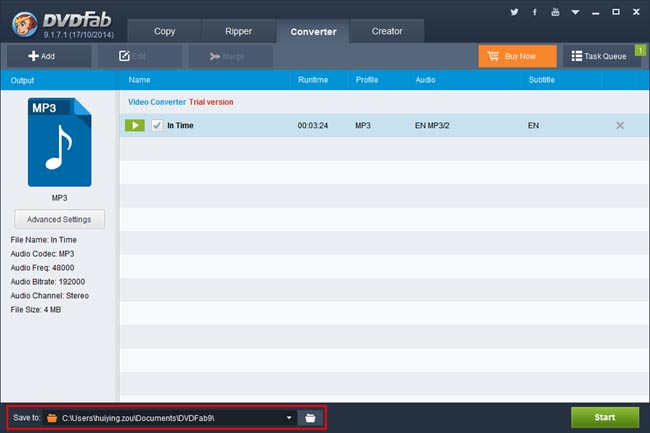
Last thing before beginning the conversion is to select a path for saving the output MP3 file.
 
Now, go ahead to hit Start button. During the conversion process, you can view detailed progress info.
 
OK. Done. For more info about this outstanding MP4 to MP3 converter, just go to: http://www.dvdfab.cn/video-converter.htm

2015年1月20日星期二

Video Converter for Mobile Phone

Most of today’s mobile phones, especially smart phones with large display screens, have a must-have feature --- watching videos. That’s why we see everybody dip their heads over their cell phones while they are in cabs, buses or subways. How to convert videos for your mobile phones becomes a must-know skill. That is also when video converter software, a software tool, which converts all kinds of videos for your mobile phones steps in.
 
Steps to convert videos for mobile phones:
 
Convert Videos for Mobile Phones: Step 1 -> Download and install the latest DVDFab 9 onto your computer;
 
Convert Videos for Mobile Phones: Step 2 -> Launch DVDFab 9, choose Converter option at the Option Interface (or from the Option Bar at the Main Interface), then load the video you are about to convert;
 
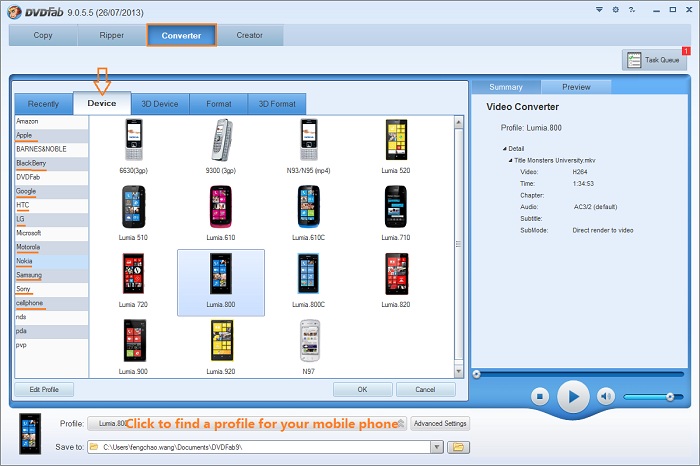
Convert Videos for Mobile Phones: Step 3 -> Click the Profile Box (or Profile Icon) to your mobile phone from Profile Library and press "OK" button, then just hit “Start” button at the Main Interface to go converting.
 
 
Note: selecting the profile designed for your mobile phone from the built-in Profile Library is the key point of the whole process.
 
Software you need: The latest build of DVDFab 9
Product you need order: Video Converter
 
For more information, please go to DVDFab Video Converter page.


Video Converter for Mobile Phone

Most of today’s mobile phones, especially smart phones with large display screens, have a must-have feature --- watching videos. That’s why we see everybody dip their heads over their cell phones while they are in cabs, buses or subways. How to convert videos for your mobile phones becomes a must-know skill. That is also when video converter software, a software tool, which converts all kinds of videos for your mobile phones steps in.
 
Steps to convert videos for mobile phones:
 
Convert Videos for Mobile Phones: Step 1 -> Download and install the latest DVDFab 9 onto your computer;
 
Convert Videos for Mobile Phones: Step 2 -> Launch DVDFab 9, choose Converter option at the Option Interface (or from the Option Bar at the Main Interface), then load the video you are about to convert;
 
Convert Videos for Mobile Phones: Step 3 -> Click the Profile Box (or Profile Icon) to your mobile phone from Profile Library and press "OK" button, then just hit “Start” button at the Main Interface to go converting.
 
 
Note: selecting the profile designed for your mobile phone from the built-in Profile Library is the key point of the whole process.
 
Software you need: The latest build of DVDFab 9
Product you need order: Video Converter
 
For more information, please go to DVDFab Video Converter page.


Video Converter for Mobile Phone

Most of today’s mobile phones, especially smart phones with large display screens, have a must-have feature --- watching videos. That’s why we see everybody dip their heads over their cell phones while they are in cabs, buses or subways. How to convert videos for your mobile phones becomes a must-know skill. That is also when video converter software, a software tool, which converts all kinds of videos for your mobile phones steps in.
 
Steps to convert videos for mobile phones:
 
Convert Videos for Mobile Phones: Step 1 -> Download and install the latest DVDFab 9 onto your computer;
 
Convert Videos for Mobile Phones: Step 2 -> Launch DVDFab 9, choose Converter option at the Option Interface (or from the Option Bar at the Main Interface), then load the video you are about to convert;
 
Convert Videos for Mobile Phones: Step 3 -> Click the Profile Box (or Profile Icon) to your mobile phone from Profile Library and press "OK" button, then just hit “Start” button at the Main Interface to go converting.
 
 
Note: selecting the profile designed for your mobile phone from the built-in Profile Library is the key point of the whole process.
 
Software you need: The latest build of DVDFab 9
Product you need order: Video Converter
 
For more information, please go to DVDFab Video Converter page.


2015年1月19日星期一

Video Converter for PS3

One of the best optimized features of DVDFab Video Converter, known as a universal video converter software, is its ability to convert videos for PS3. If you are just in need of this, you can read on the following tip to learn how to convert videos for PS3.
 
Step by step tip on converting videos for PS3:
 
Convert Videos for PS3: Step 1 -> Download and install the latest DVDFab 9 onto your computer;
 
Convert Videos for PS3: Step 2 -> Launch DVDFab 9, choose Converter option at the Option Interface (or from the Option Bar at the Main Interface), then load the video you are about to convert;
 
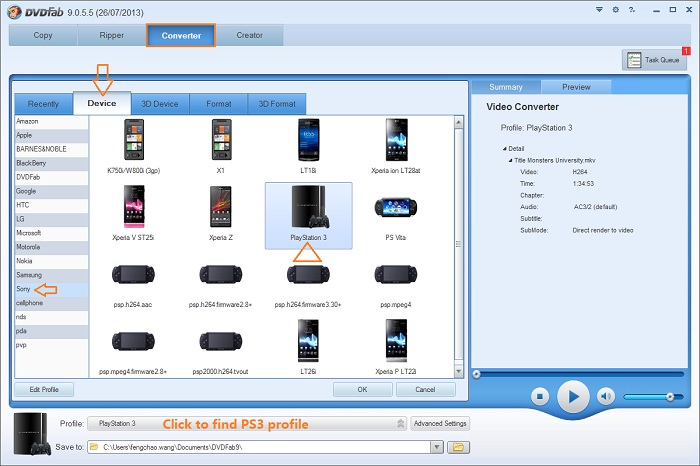
Convert Videos for PS3: Step 3 -> Click the Profile Box (or Profile Icon) to find PS3 from Profile Library and press "OK" button, then just hit “Start” button at the Main Interface to go converting.
 
 
Note: selecting PS3 profile from the built-in Profile Library is the key point of the whole process.
 
Software you need: The latest build of DVDFab 9
Product you need order: Video Converter
 
For more information, please go to DVDFab Video Converter page.

2015年1月18日星期日

3D Blu-ray Ripper

A good 3D Blu-ray ripper software usually has three basic characteristics: being able to decrypt all the known Blu-ray protections, being able to convert 3D Blu-rays into all the popular 3D videos like MP4, MKV, WMV etc, and being able to convert 3D Blu-rays into various 3D formats, like glasses-free 3D, side-by-side 3D, interlaced 3D, anaglyph 3D, two separate files, even two videos in one file. DVDFab Blu-ray Ripper is the one got these three features covered.
 
This tip below leads you to learn more:
 
3D Blu-rays to 3D Videos > Step 1: Download and install the latest DVDFab 9 onto your computer;
 
3D Blu-rays to 3D Videos > Step 2: Launch DVDFab 9, choose Ripper option at the Option Interface (or from the Option Bar at the Main Interface), then load the target 3D Blu-ray;
 
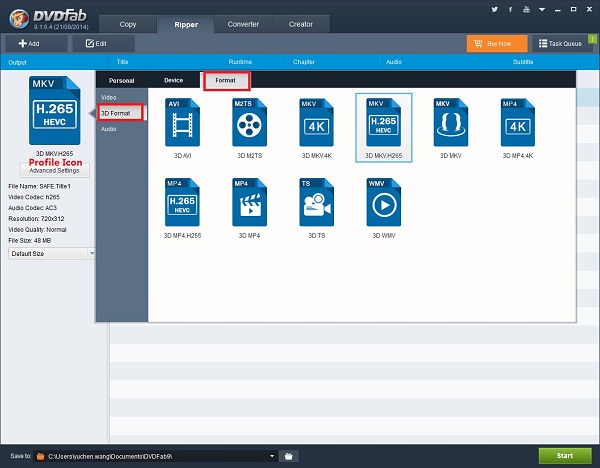
3D Blu-rays to 3D Videos > Step 3: Click the Profile Box (or Profile Icon) which takes you to DVDFab Built-in Profile Library, and then select one profile your device supports, for example, “3d.mkv.h264.ac3” from the “3D Format” column and “MKV” section;
 
 
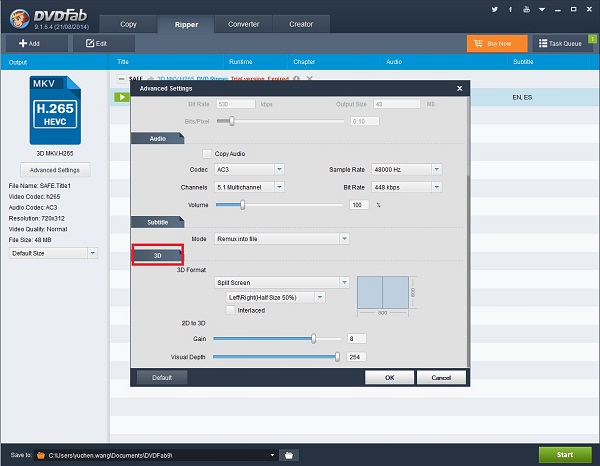
3D Blu-rays to 3D Videos > Step 4: Click “Advanced Settings” button behind the Profile Box to do corresponding settings regarding to video, audio, subtitle and 3D formats;
 
 
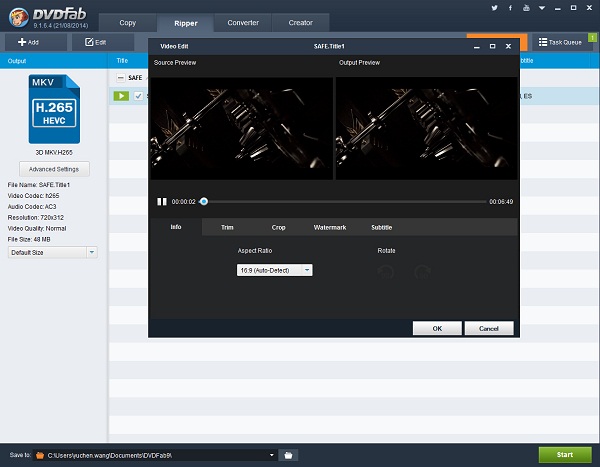
3D Blu-rays to 3D Videos > Step 5: Click the “Edit” button at the top right corner of Operation Window if you want to customize the resulting 3D video. After you have done here, return to the main interface to “Start” the converting process.
 
 
Note: the previous Blu-ray 3D Ripper has been integrated into Blu-ray Ripper. In other words, the redesigned Blu-ray Ripper now is capable to rip 3D Blu-rays into various 3D videos.
 
 
Software you need: The latest build of DVDFab 9
Product you need order: Blu-ray Ripper (3D Plus)
 
For more information, please go to: http://www.dvdfab.cn/blu-ray-ripper.htm