2015年8月16日星期日

Universal DVD Converter

DVDFab DVD Ripper is a universal DVD converter which can rip and convert DVDs to various videos or audio in different formats. Nearly all formats and devices are supported by DVDFab for the output files. And video effects can be customized freely. Now let’s have a look at how to use it.
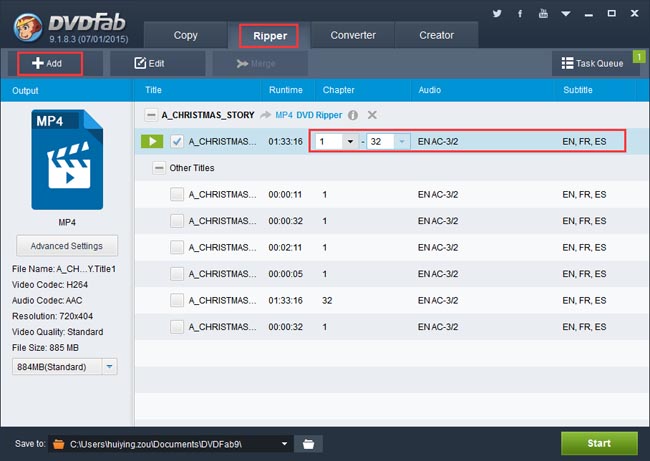
Step 1: Run DVDFab, click Ripper option then load the source DVD
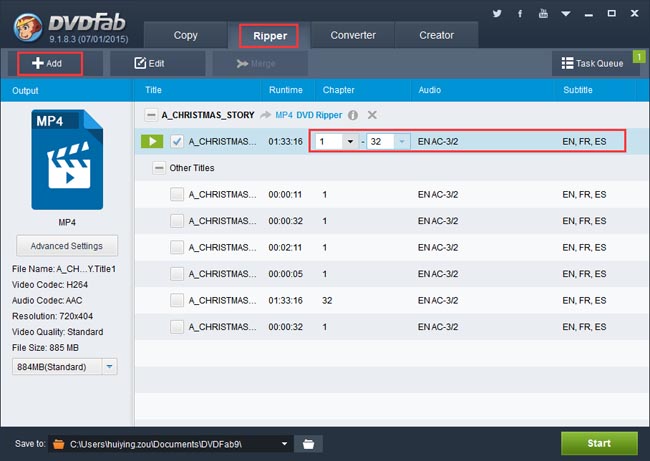
Download and install DVDFab, then run it. Go to the Ripper option. Insert the DVD disc into DVD drive, or click Add button on the DVDFab interface to load the digital DVD source. After the movie is in, the longest title will be selected by default. For a highlighted title, the first/last chapter, audio and subtitles can be changed.
Step 2: Choose a profile
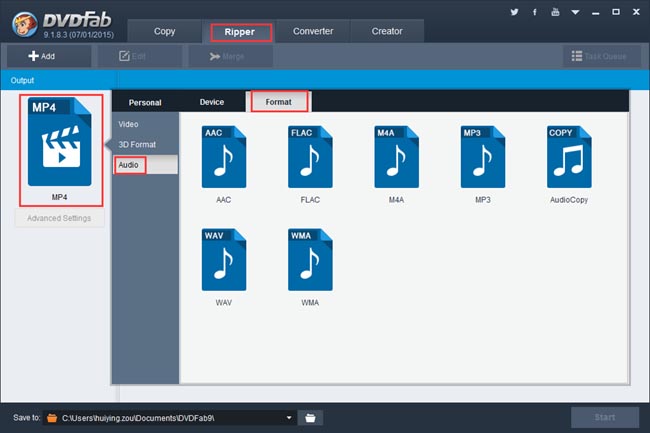
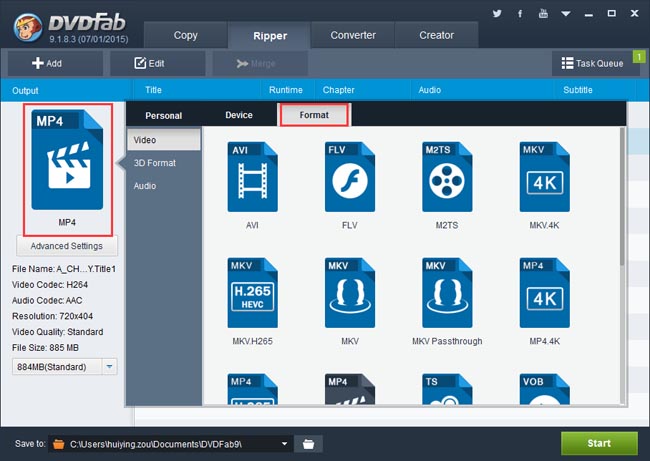
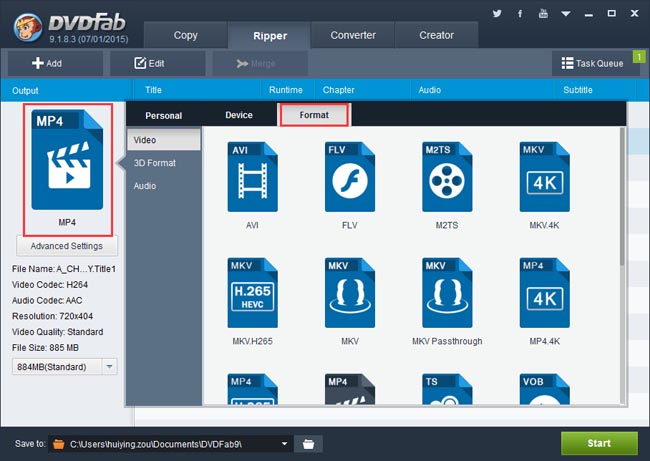
Click the profile icon on the left panel to open the profile library, in which profiles for all supported formats and devices are included. Now let’s take a glimpse at the Format option, which includes a myriad of video/audio formats.
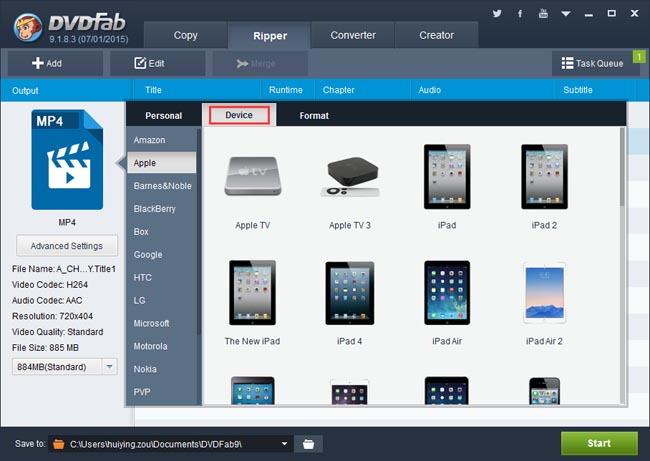
Then let’s go to Device option which covers various popular mobile and other devices.
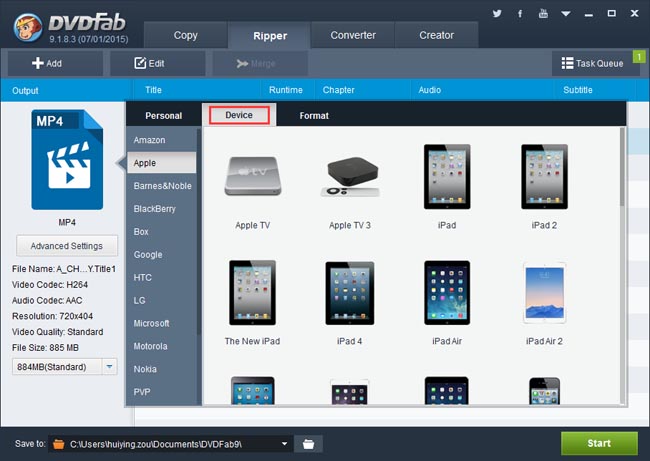
Let’s use the “iPad Air” profile as the example here.

Step 3: Edit the video effect
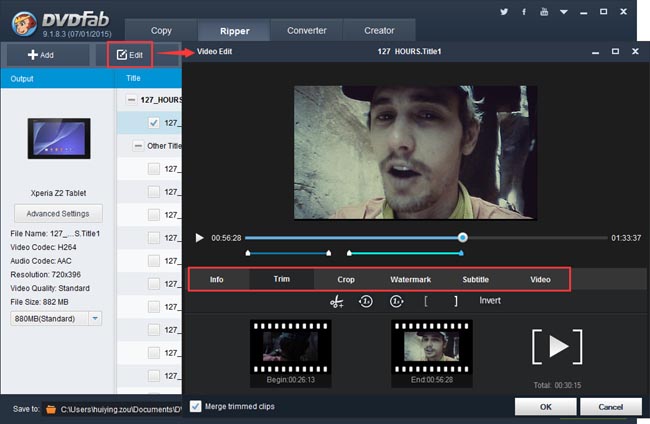
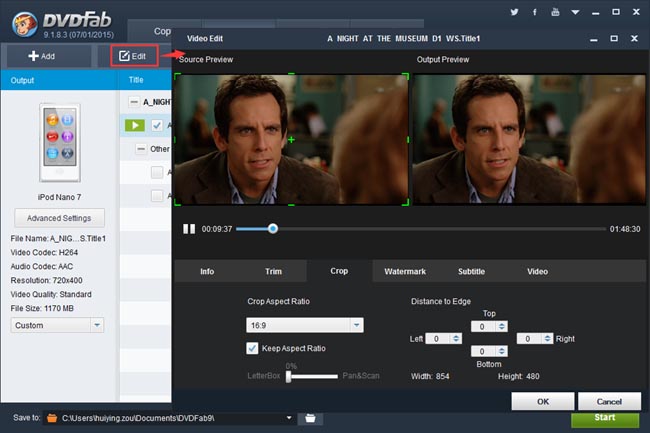
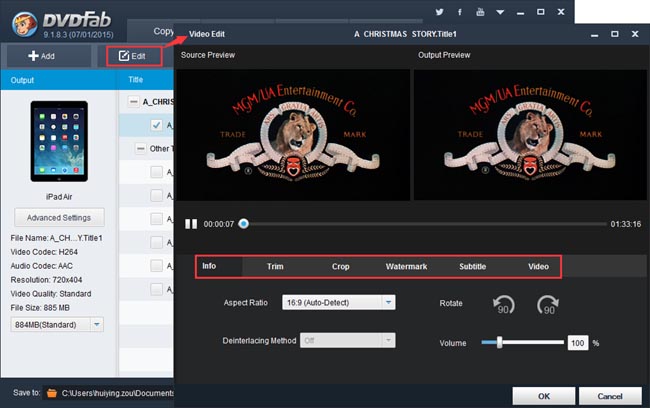
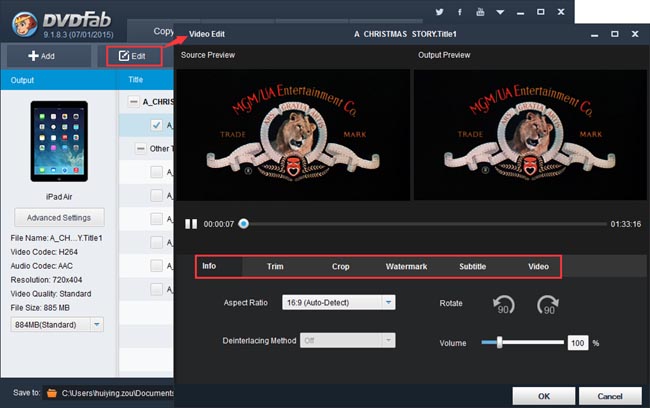
Click Edit button on the main interface and you can trim and crop the video, add your personal watermark, change the volume, load external subtitles, etc.
Step 4: Start DVD conversion
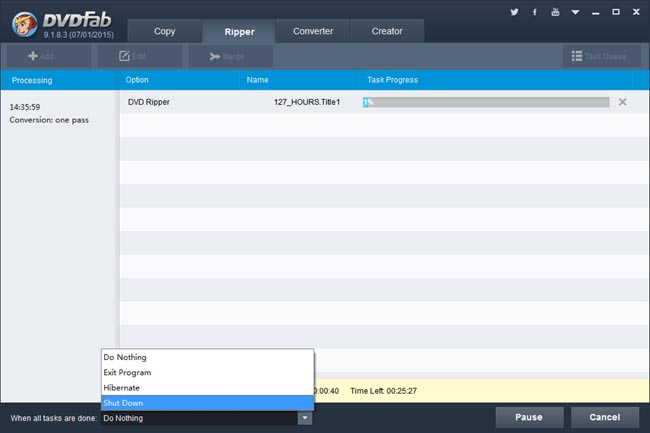
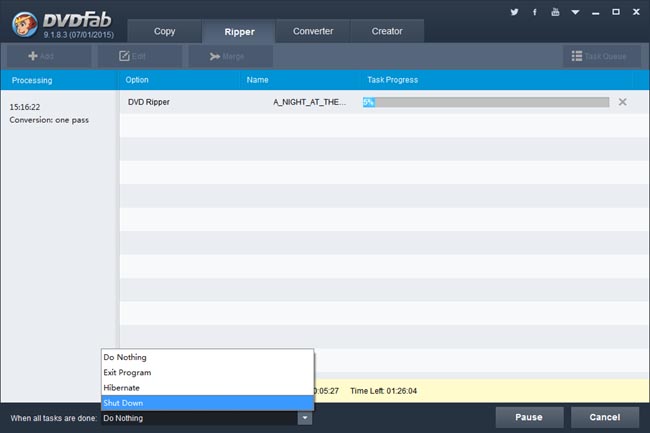
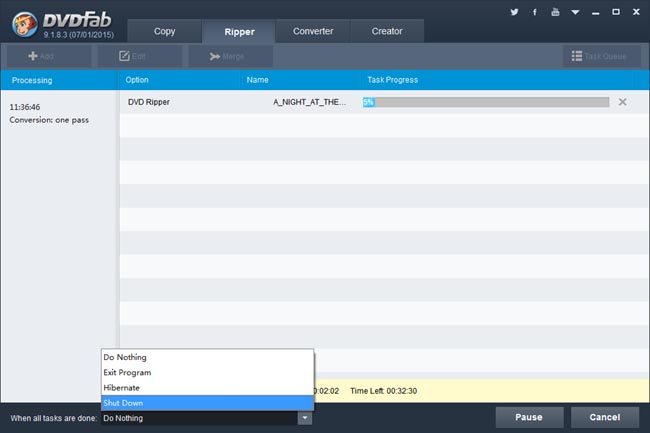
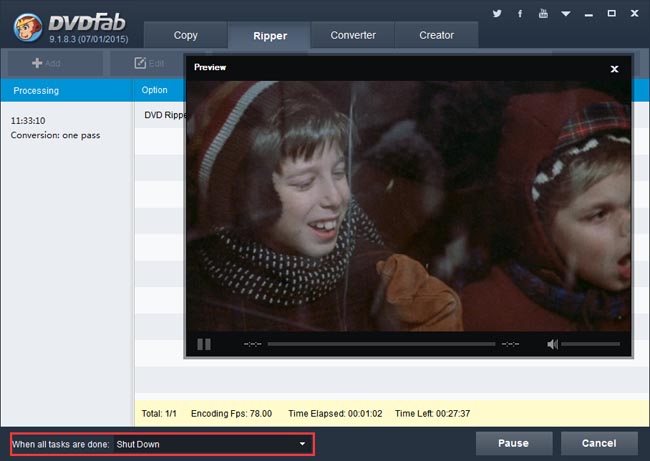
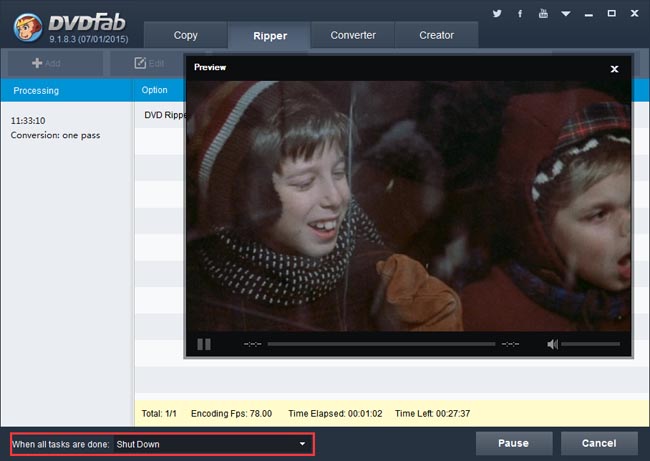
Now go to specify a storage path in the “Save to” box at the bottom of the main interface, then click Start button to start conversion process. During the process, you can view the progress info, and even preview the progress in real time. You can also set your PC to shut down or hibernate when all tasks are done.
OK. Leave the rest to DVDFab now. More info about DVDFab DVD Ripper can be found at: www.dvdfab.cn/dvd-ripper.htm

2015年8月13日星期四

Rip and Convert DVD to Sony Tablet

Rip and Convert DVD to Sony Tablet


DVDFab DVD Ripper can rip DVD and convert DVD to Sony Tablet. It’s easy to use and the output file is very outstanding in quality. Now follow me to learn more about how to use it for this DVD to Sony Tablet conversion.
 
Step 1: Run DVDFab, Choose Ripper then select the profile
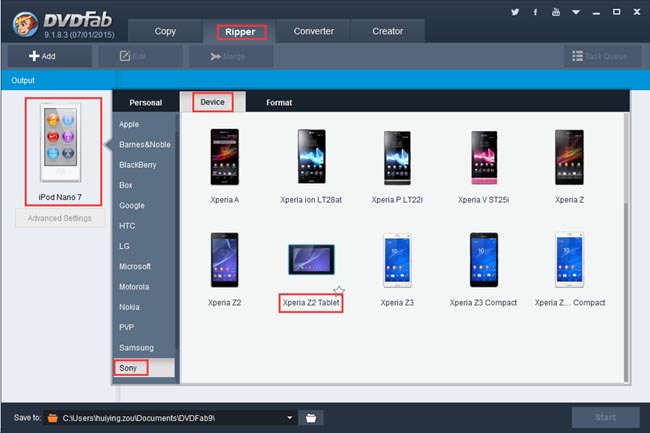
Run DVDFab, click Ripper option. On the left panel, click the profile icon to open the profile library. Then go to Device -> Sony to choose the profile Xperia Z2 Tablet.
 
Step 2: Load in the DVD source
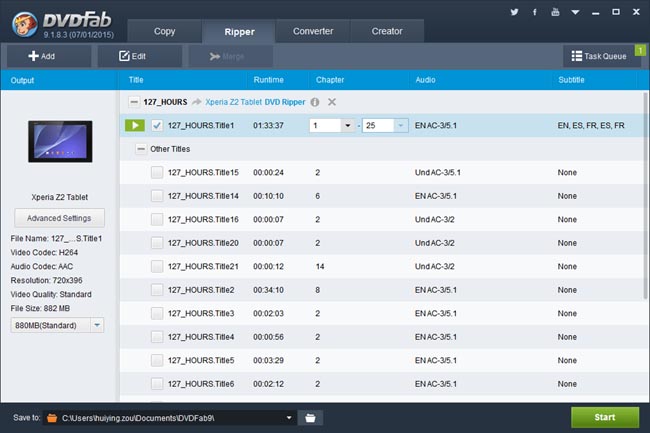
Insert the DVD disc you want to convert into DVD drive, or click Add button to load in the source if the DVD content is saved as a digital file. After the movie is in, you will see the longest movie title is automatically selected, with audio tracks, subtitles and chapters changeable. You can also choose other titles to rip.
 
Click Edit button on the top of the interface then you can trim and crop the video, add watermark, load external subtitles, etc.
 
Step 3: Start conversion
Click the Start button to start conversion if all settings are OK. During the process, you can view detailed progress info, and set your PC to shut down or hibernate, or set DVDFab to exit, when all tasks are done.
 
OK. Done. More info about DVDFab DVD Ripper can be found at: www.dvdfab.cn/dvd-ripper.htm
2015年8月12日星期三

Rip and Convert DVD to iPod Nano

DVDFab DVD Ripper can rip and convert DVD to virtually all popular devices. This tip is in particular about how to use it to convert DVD to iPod Nano. Let’s take a look at the detail step by step.
 
Step 1: Run DVDFab, choose Ripper, and select an iPod Nano profile
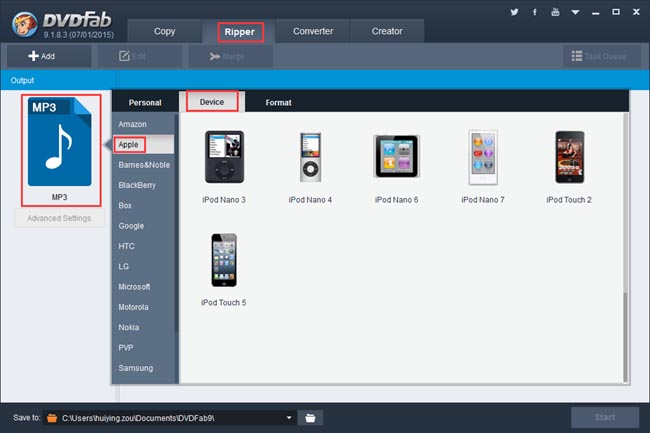
Run DVDFab and click the Ripper option. Then on the left panel of the interface, click the profile icon to open the profile library. Go to Device -> Apple to select an iPod Nano profile you like.
 
Step 2: Import the source
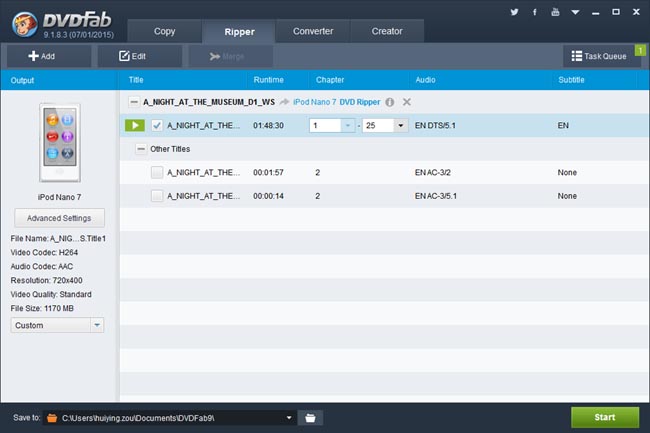
Insert the DVD disc you want to rip into DVD drive, or drag and drop the DVD digital file into the program if the source is a DVD folder or an ISO image file. After the movie is in, the longest movie title will be selected by default with audio tracks, subtitles and chapters changeable. And you can choose other titles to convert as well.
 
If you want to trim or crop the video, you can click Edit button on the main interface. And the Video Edit window will crop up. In this window, you can trim and crop the video, change the volume, add watermark, import the external subtitles, etc.
 
Step 3: Start DVD to iPod Nano conversion
OK. Now go to hit the Start button to start conversion. During the process you can view detailed progress info, and set your PC to shut down or hibernate or set the program to exit when all tasks are done.
 
OK. More info about DVDFab DVD Ripper can be found at: www.dvdfab.cn/dvd-ripper.htm
2015年8月11日星期二

Rip and Convert DVD to iPod Touch

DVDFab DVD Ripper can rip and convert DVD to iPod Touch with only three steps, just as easy as loading the source, choosing an iPod Touch profile, and starting conversion. Read on for more detail.
 
Step 1: Run DVDFab, choose Ripper then select a profile for your iPod Touch
Start DVDFab and choose Ripper option. Click the profile icon on the left panel to bring about all supported video/audio/device profiles. For an iPod Touch profile, go to Device and to Apple, then you can find it. Let’s choose iPod Touch 2 for example.
 
Step 2: Load in the source DVD
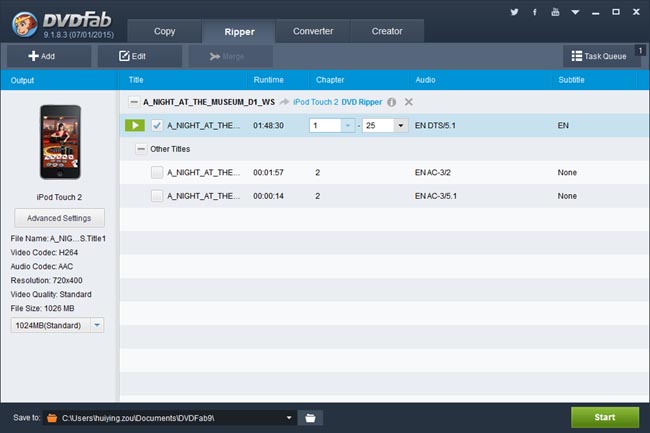
Insert the source DVD disc into DVD drive, or click Add button to load the source file if it’s saved in digital form. Seconds later the DVD movie will be imported in, and the longest title will be selected by default. You can also choose other titles for conversion. The audio tracks and subtitles, and chapters of a highlighted title can also be changed.
 
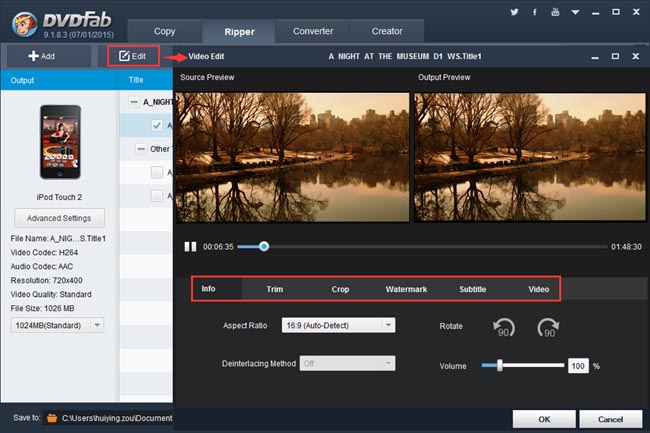
If you want to edit the video effect, just click Edit button on the main interface, then you can change the volume, aspect ratio, trim and crop the video, add watermark, load external subtitles, etc.
 
Step 3: Start conversion
OK. Now you can go to click Start button to start this DVD to iPod Touch conversion. You can view detailed progress info and set your PC to shut down or hibernate or set the program to exit when all tasks are done.
 
OK. That’s all. For more info about DVDFab DVD Ripper, you can go to: www.dvdfab.cn/dvd-ripper.htm
2015年8月10日星期一

DVD Audio Extractor

DVDFab DVD Ripper can be used as a robust DVD audio extractor which can extract audio from DVD and save the audio in format of AAC, M4A, MP3, WAV, WMA, FLAC, etc. If you’re interested please follow me to have a look at this tip about how to use DVDFab DVD Ripper to do the audio extraction.
 
Step 1: Run DVDFab, Choose Ripper option, then select an audio format
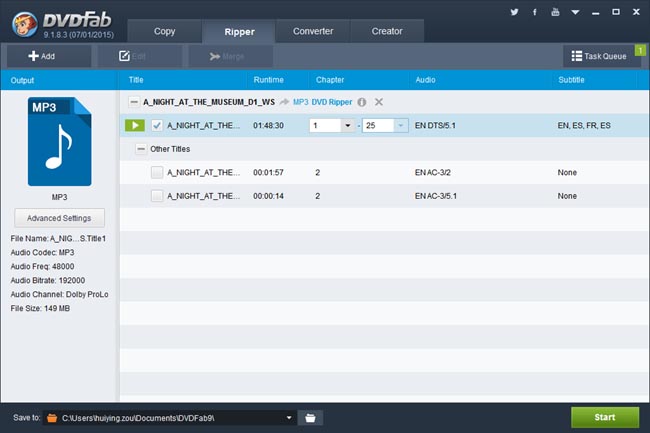
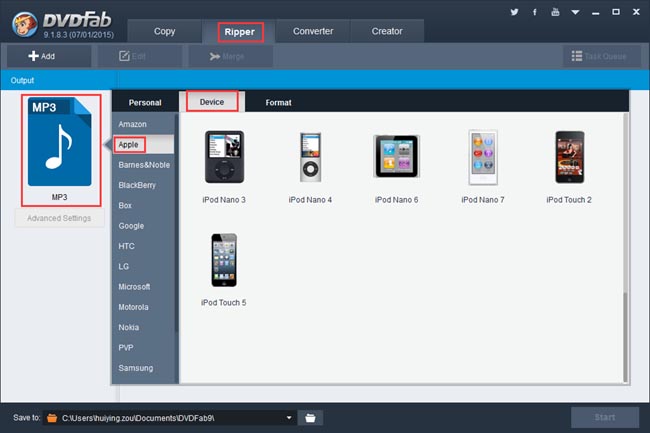
Run DVDFab, go to Ripper option. On the left panel of the interface, click the profile icon to open the profile library where all supported video/audio formats and device profiles are included. Go to Format, and to Audio, then select an audio format. We’re using the MP3 profile for example in this article.
 
Step 2: Load in the source DVD
Insert the DVD disc you want to extract the audio from into the DVD drive of your PC and seconds later the source will be in. Or if the source is a digital file, just click Add button to load it. After it’s in, you can see the longest movie title is automatically selected, with its first/last chapter, audio tracks and subtitles changeable. Of course you can choose other titles as well.
 
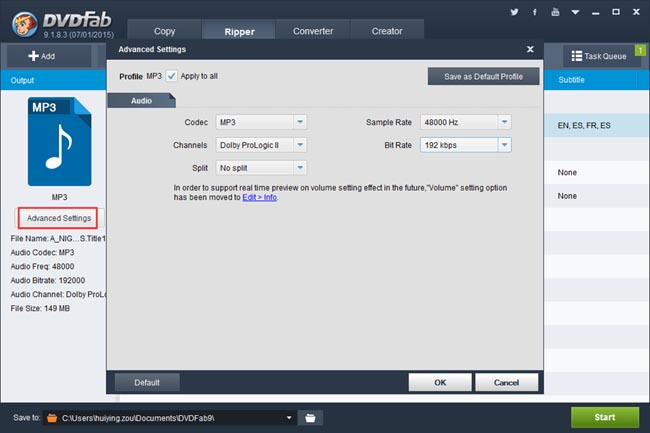
Now click Advanced Settings button to set the audio channels, sample rate, and bit rate if you like.
 
Step 3: Start audio ripping
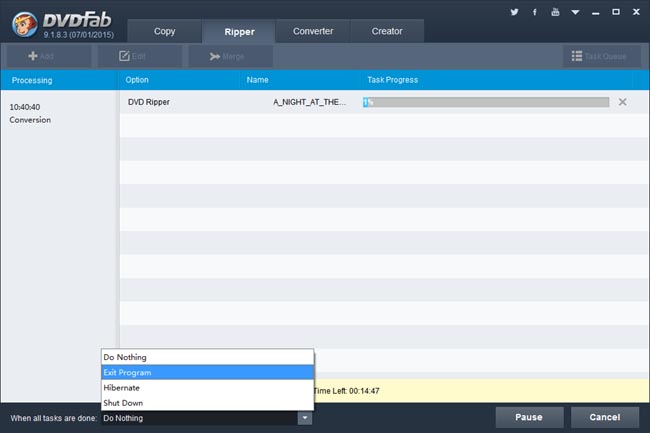
Now go to the bottom of the main interface to specify a storage path for the output audio in “Save to” box, then click Start button to start the ripping process. You can view detailed progress info, and set your PC to shut down or hibernate or set the program to exit when all tasks are done.
 
OK. Soon after you’ll get an excellent audio file. More info about DVDFab DVD Ripper can be found at:www.dvdfab.cn/dvd-ripper.htm

2015年8月6日星期四

Free DVD Ripping Program

No matter if you’re looking for a free DVD ripping program or a professional one, DVDFab DVD Ripper can meet your every DVD ripping and conversion need, when being used within its 30-day trial period. After the trial period, you have to pay for continuing to use it. So accurately speaking, it is a free DVD ripper for only 30 days. But it is definitely a powerful freeware you’d ever want for your DVD ripping issues. Now let’s have a look at how to use it, free.
 
Step 1: Download and install DVDFab
Go to DVDFab official download site www.dvdfab.cn/download.htm to download the latest version of DVDFab. Then install it. The installation is very easy, just follow the wizards.
 
Step 2: Choose Ripper option, then insert the DVD disc
For enabling DVDFab DVD Ripper, select Ripper option at first, then insert the DVD disc you want to convert, or click Add button to load the digital source file. After the movie is loaded in, which will take about only one or two seconds, you can see the longest movie title is selected by default. You can also click Other Titles to bring about other titles for selection. Move the mouse to the Chapter, Audio or Subtitle part of a title, then you can change the first/last chapter, audio tracks and subtitles.
 
Step 3: Choose a format or a device you want to convert the DVD to
Click the profile icon on the left panel to open the profile library. Then go to Format, you can choose any video format, audio format and 3D format it supports. It’s neat that nearly all popular video/audio formats are supported by DVDFab.
 
Or you can go to Device to select a profile for your device you’re going to use to play the output video.
 
We are using the iPad Aire profile for example in this article.
 
In this tip we’re using an iPad Air profile for example. After the profile selection, go to the main interface of DVDFab to click Edit button and open the Video Edit window. Here you can edit the video effect such as changing the volume, trimming and cropping the video, adding watermark, importing external subtitles, etc.
 
Step 4: Click Start button
After all settings are OK, go to click Start button to start conversion. You can view detailed progress info and preview the progress in real time during the process. You can also your PC to shut down or hibernate, or set DVDFab to exit, when all tasks are done.
 
OK. Done. More info about DVDFab DVD Ripper please refer www.dvdfab.cn/dvd-ripper.htm
2015年8月5日星期三

Free DVD Ripper

DVDFab DVD Ripper can be used as a free DVD ripping software within its 30-day trial period, with full functions as the paid version. It’s neat that nearly all video formats and display devices are supported. Now let’s have a look at how to use it to do free DVD to video conversion.
 
Step 1: Download and install DVDFab, run it within the 30-day period
Download DVDFab at www.dvdfab.cn/download.htm and follow the installation wizards to complete the installation easily. Then run it.
 
Step 2: Go to Ripper option, then load the source DVD
Go to choose Ripper option after DVDFab is fired up. Then insert the DVD disc you want to rip and convert into the DVD drive, or click the Add button on the top left corner, to load the source DVD movie into the program. One or two seconds later, you’ll see the movie in the interface, and the longest movie title has been selected by default. However, you can still choose other titles for conversion. For a highlighted title, you can change its first/last chapter, audio and subtitles if you’d like.
 
Step 3: Specify a profile
Now click the profile icon (the default profile in the following screenshot is MP4) on the left panel to bring about all supported profiles of formats or devices.
The Format profiles cover nearly all the popular video and audio formats, and even 3D formats.
 
And the Device profiles include almost all popular mobile and playback devices.
 
We are using the iPad Aire profile for example in this article.
 
Now click the Edit button then you can go to change the video’s volume, trim and crop the video, add watermark to the video, load external subtitles, etc.
 
Step 4: Start DVD ripping and conversion process
OK. Go hit the Start button to start conversion. During the process you can view detailed progress info, and you can even preview the progress in real time. If you don’t want to wait till everything done, just set your PC to shut down or hibernate when all tasks are done.
 
OK. That’s all there is to it. For more info about DVDFab DVD Ripper, please go to: www.dvdfab.cn/dvd-ripper.htm
And I’d like to remind you again that it’s only free within its 30-day trial period. Have fun with it!