2015年4月9日星期四

Convert MKV to DVD

Among the popular video formats, MKV video is comparatively new member, which is born to compete with MP4, AVI and others. What is MKV? MKV stands for Matroska, a file format that is capable of holding an unlimited number of videos, pictures, audio or subtitle tracks just in a single file. It is generally known as Matroska Multimedia Container. Compared with MP4, AVI, etc, which are lossy formats, MKV can be lossless. So an MKV video can be pretty large in terms of size, even its duration is very short. So if you want to burn such kind of MKV videos into DVD format, the resulting DVD quality could be very impressive. How to achieve that? You just come to a DVD creator software, which is able to convert MKV videos into regular DVD format and burn it onto blank DVD discs, such as DVDFab DVD Creator, a very popular one in this field.
 
Go through this tip with illustrations if you need to know more:
 
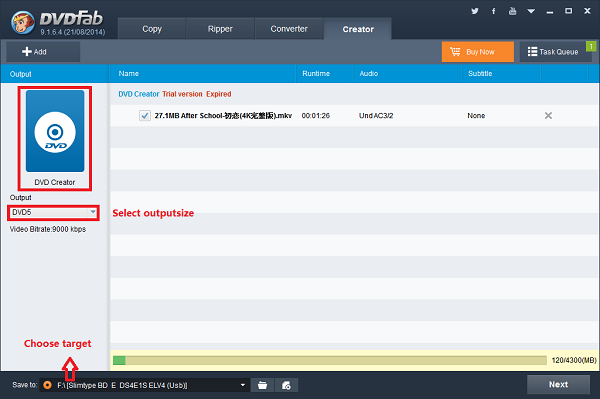
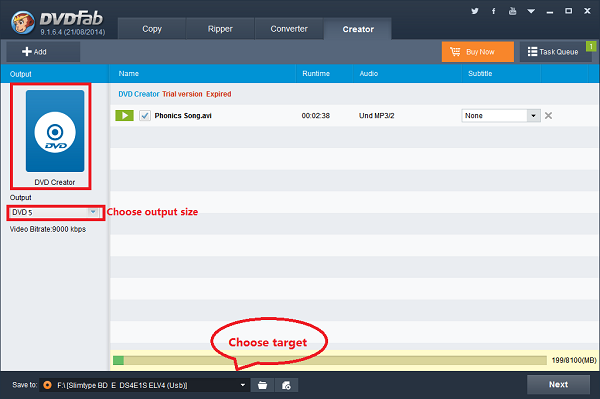
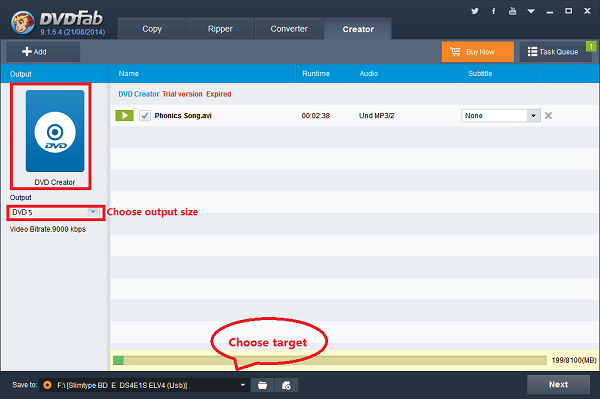
MKV to DVD Converting  -> Step 1: Download, install and run the latest DVDFab DVD Creator, then add your MKV videos per the instructions, insert a blank DVD disc into your DVD writer, and choose an output size at the bottom middle part of this interface, according the blank DVD you inserted in, for example DVD 5;
 
 
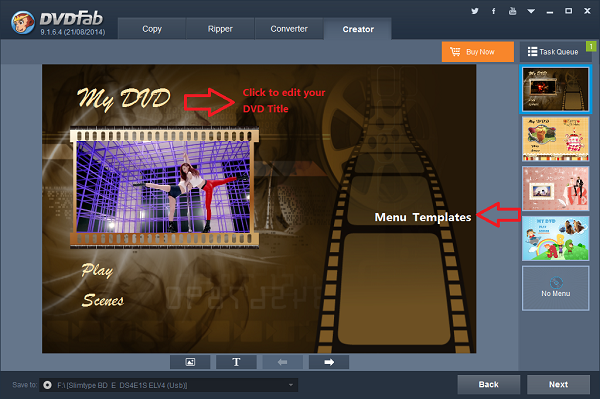
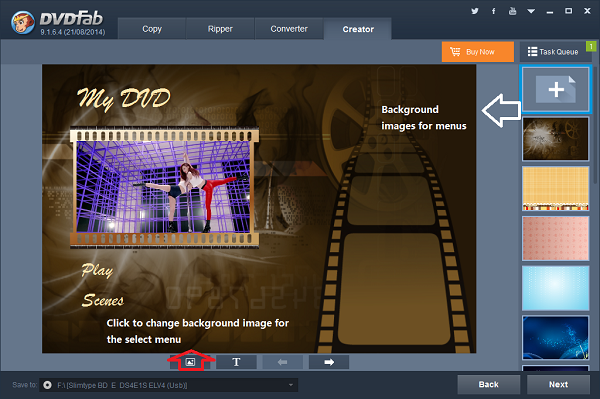
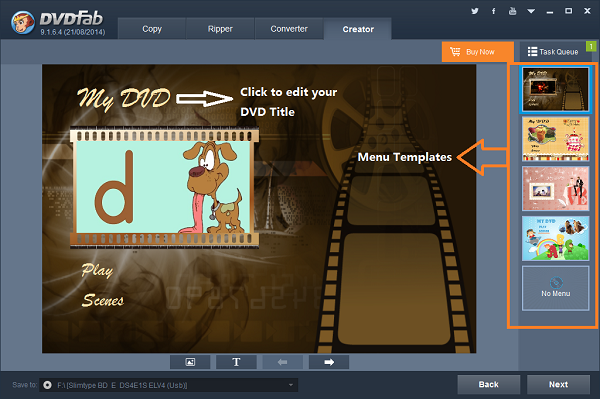
MKV to DVD Converting -> Step 2: Choose one menu for your DVD you like from the templates, name your DVD and click on “Next”;
 
 
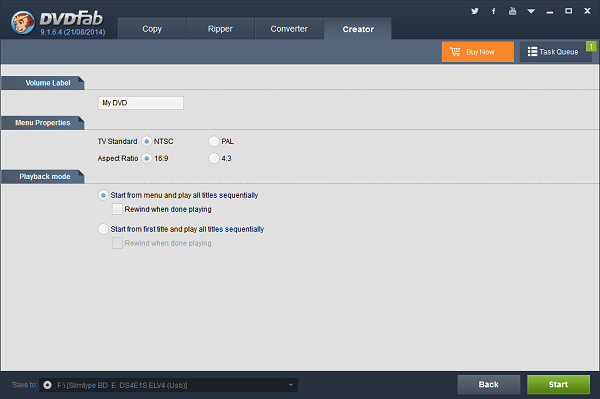
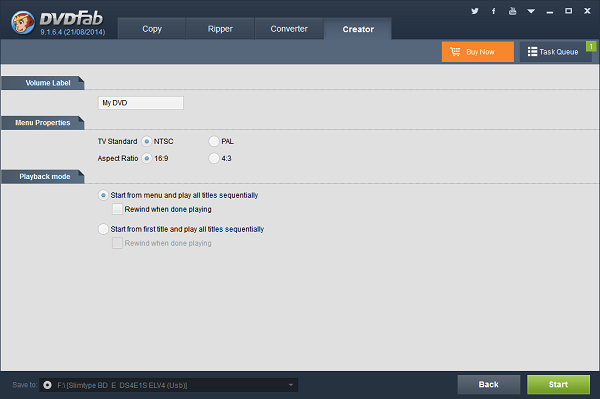
MKV to DVD Converting -> Step 3: Choose the TV Standard, Aspect Ratio and the way you would like to play your DVD, and then hit the start button.
 
 
Sidenote:
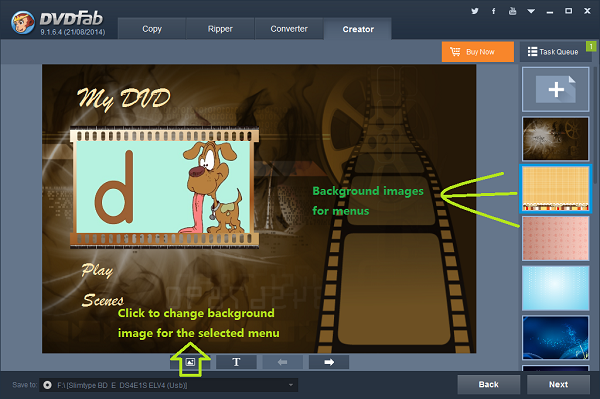
1). At the menu section, you can click on the text to directly edit the font, size and color, and you can also click on a certain decoration to relocate it;
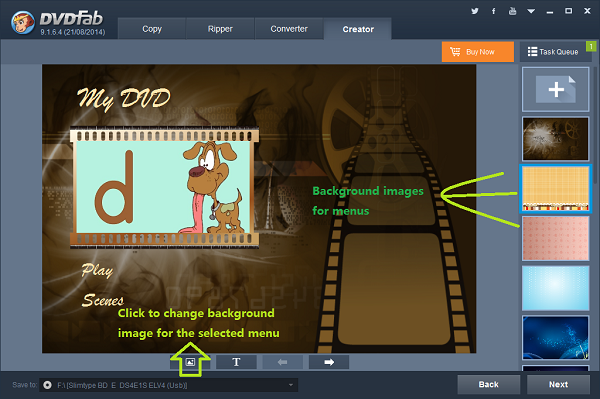
2). You can click the Image Edit button to change background image for the selected menu.  
 
 
So easy it is! You can do it any time you want at home! Have fun!
 
Software you need: The latest build of DVDFab 9
Product you need order: DVD Creator

2015年4月8日星期三

Convert AVI to DVD

Nowadays, people have many ways for entertainments, traveling, going to local resorts, playing games, watching movies, and so on. As far as watching movies is mentioned, there are also many ways to do that, going to cinemas or theatres, buying movie DVDs or Blu-rays and watching them at home, buying instant videos on internet and enjoying them on computers, tablets or large screen smart phones. Do you ever need to burn the instant videos or on-demand videos like AVI videos onto blank DVDs so that you are able to watch them on home DVD player? There is an application called DVD creator software, capable of converting AVI videos into regular DVD format to allow you watch it on home DVD player. DVDFab DVD Creator is a such outstanding application.
 
If you are interested, you can check this tip out:
 
AVI to DVD Converting  -> Step 1: Download, install and run the latest DVDFab DVD Creator, then add your AVI videos per the instructions, insert a blank DVD disc into your DVD writer, and choose an output size at the bottom middle part of this interface, according the blank DVD you inserted in, for example DVD 5;
 
 
AVI to DVD Converting -> Step 2: Choose one menu for your DVD you like from the templates, name your DVD and click on “Next”;
 
 
AVI to DVD Converting -> Step 3: Choose the TV Standard, Aspect Ratio and the way you would like to play your DVD, and then hit the start button.
 
 
Sidenote:
1). At the menu section, you can click on the text to directly edit the font, size and color, and you can also click on a certain decoration to relocate it;
2). You can click the Image Edit button to change background image for the selected menu.  
 
 
So easy it is! You can do it any time you want at home! Have fun!
 
Software you need: The latest build of DVDFab 9
Product you need order: DVD Creator
 

Convert AVI to DVD

Nowadays, people have many ways for entertainments, traveling, going to local resorts, playing games, watching movies, and so on. As far as watching movies is mentioned, there are also many ways to do that, going to cinemas or theatres, buying movie DVDs or Blu-rays and watching them at home, buying instant videos on internet and enjoying them on computers, tablets or large screen smart phones. Do you ever need to burn the instant videos or on-demand videos like AVI videos onto blank DVDs so that you are able to watch them on home DVD player? There is an application called DVD creator software, capable of converting AVI videos into regular DVD format to allow you watch it on home DVD player. DVDFab DVD Creator is a such outstanding application.
 
If you are interested, you can check this tip out:
 
AVI to DVD Converting  -> Step 1: Download, install and run the latest DVDFab DVD Creator, then add your AVI videos per the instructions, insert a blank DVD disc into your DVD writer, and choose an output size at the bottom middle part of this interface, according the blank DVD you inserted in, for example DVD 5;
 
 
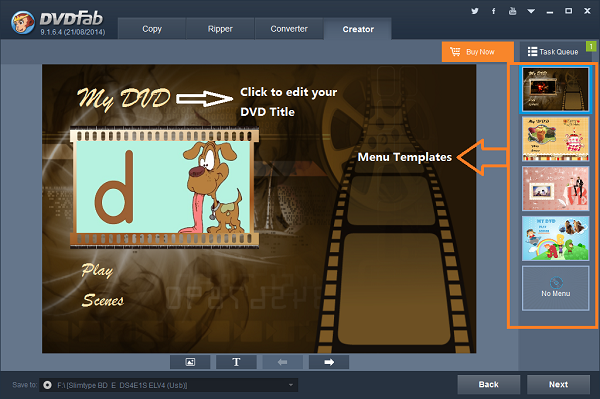
AVI to DVD Converting -> Step 2: Choose one menu for your DVD you like from the templates, name your DVD and click on “Next”;
 
 
AVI to DVD Converting -> Step 3: Choose the TV Standard, Aspect Ratio and the way you would like to play your DVD, and then hit the start button.
 
 
Sidenote:
1). At the menu section, you can click on the text to directly edit the font, size and color, and you can also click on a certain decoration to relocate it;
2). You can click the Image Edit button to change background image for the selected menu.  
 
 
So easy it is! You can do it any time you want at home! Have fun!
 
Software you need: The latest build of DVDFab 9
Product you need order: DVD Creator
 

2015年4月7日星期二

How to Make Your Own DVD Disc

Do you have the need to convert your personally collected videos into standard DVD format and possibly then burn them onto blank DVD discs? If this turns out to be possible, then you will be able to save a lot of money on buy movie DVDs, as you can burn your own DVDs at home.
 
To that target, a DVD authoring tool that is able to convert all kinds of videos into DVD format and burn it onto blank DVD disc is a must-have tool. This is why DVDFab DVD Creator is here to help you on that subject.
 
Check this tip to see it works like a charm:
 
How to Make Your Own DVD Disc -> Step 1: Download, install and run the latest DVDFab DVD Creator, then add your own videos per the instructions, insert a blank DVD disc into your DVD writer, and choose an output size at the bottom middle part of this interface, according the blank DVD you inserted in, for example DVD 5;
 
 
How to Make Your Own DVD Disc -> Step 2: Choose one menu for your DVD you like from the templates, name your DVD and click on “Next”;
 
 
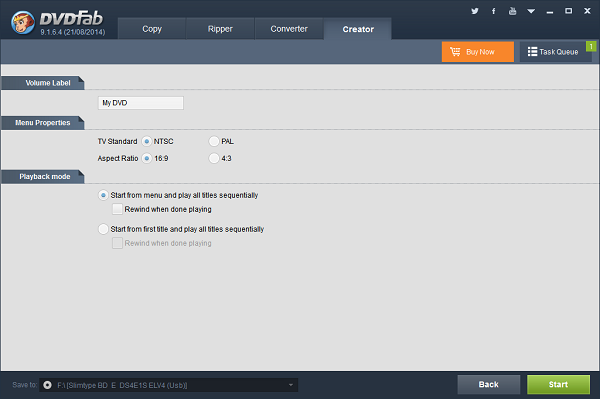
How to Make Your Own DVD Disc -> Step 3: Choose the TV Standard, Aspect Ratio and the way you would like to play your DVD, and then hit the start button.
 
 
Sidenote:
1). At the menu section, you can click on the text to directly edit the font, size and color, and you can also click on a certain decoration to relocate it;
2). You can click the Image Edit button to change background image for the selected menu.  
 
 
As said, it’s just that easy!
 
Software you need: The latest build of DVDFab 9
Product you need order: DVD Creator
 
For more information, please go to DVDFab DVD Creator page.

2015年4月6日星期一

Copy DVDs to Blu-ray

DVDFab DVD to Blu-ray Converter can copy multiple DVDs to one Blu-ray so that you can back up your DVD series in a space-saving way and play them without swapping discs. Please note after this DVD to Blu-ray copy, the DVDs are converted into Blu-ray format. If you’re interested, please follow me to take a look at how to do this task step by step.
 
Step 1: Run DVDFab and enable DVD to Blu-ray Converter
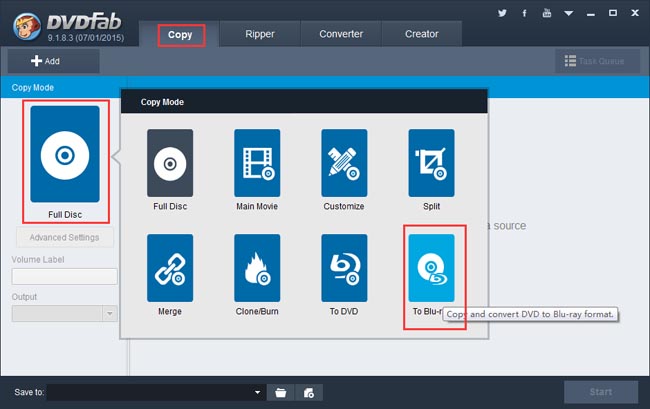
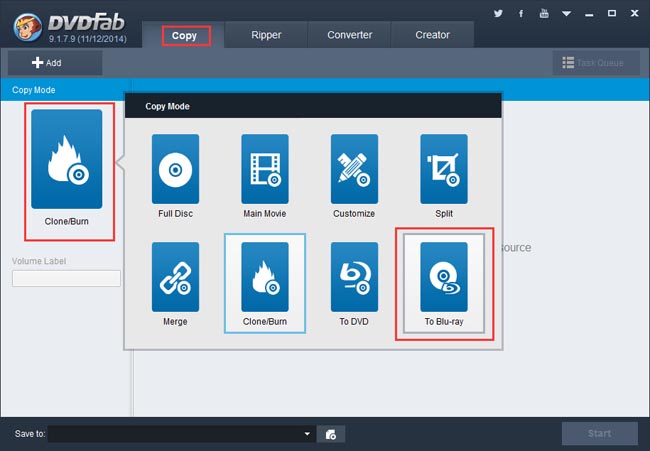
Run DVDFab and select Copy option. Go to the left panel to click the copy mode icon to open the Copy Mode library, in which please select “To Blu-ray”. And DVDFab DVD to Blu-ray Converter is activated.
 
Step 2: Load the DVDs you want to copy to Blu-ray
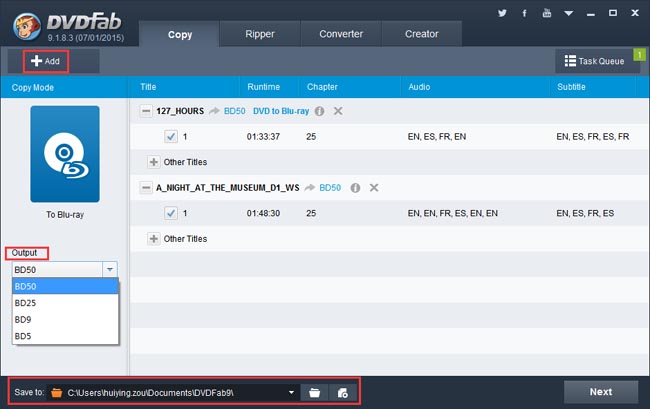
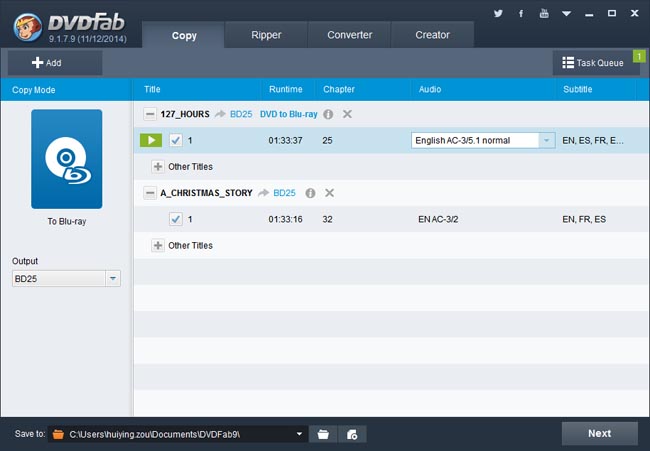
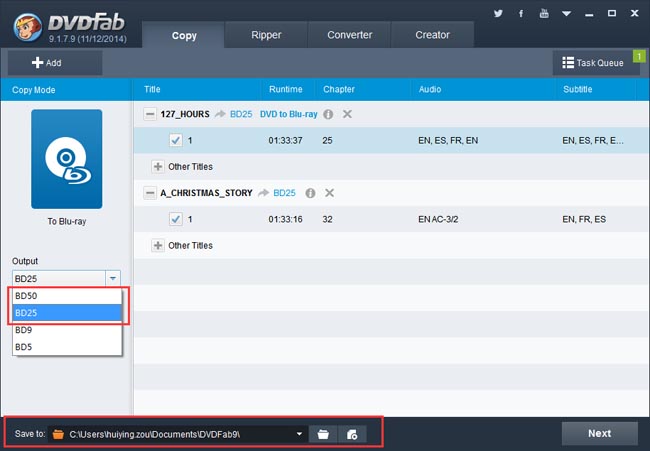
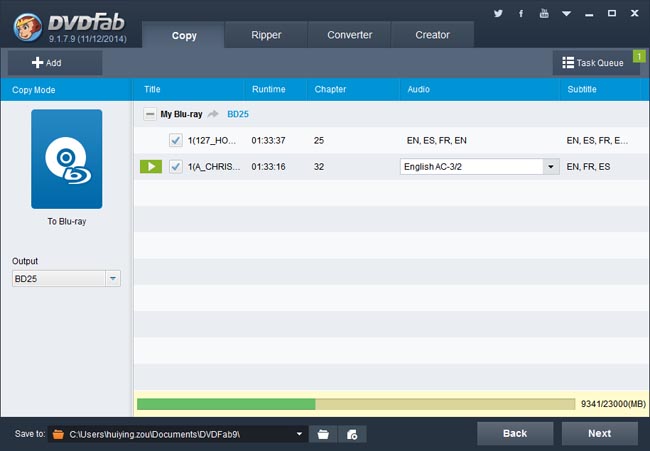
Click Add button to load the digital DVD files for processing. If you want to load the physical discs directly, please make sure you have enough available DVD drives to connect to your PC then insert the DVD discs into these drives. Seconds later, all DVD movies will be in with the longest title selected by default. You are free to change their first/last chapters, audio tracks and subtitles. Then go to the left panel to choose BD50 or BD25 for the Output size/type. And go to the bottom “Save to” box to specify a storage directory for the output Blu-ray folder or image file. If you want to burn the DVD contents into a blank Blu-ray disc, just connect a Blu-ray drive to your PC and select the drive in the “Save to” box.
 
Step 3: Customize your own Blu-ray menu
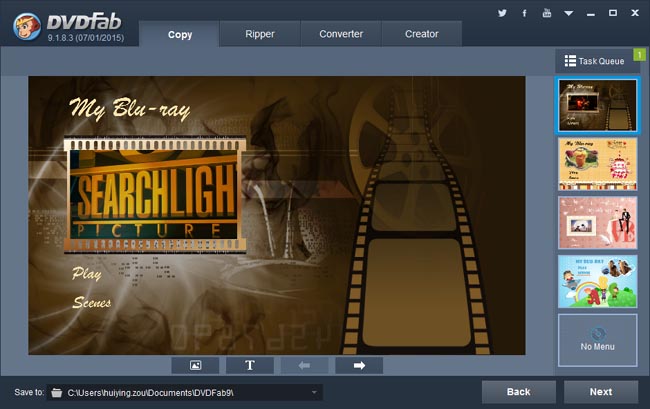
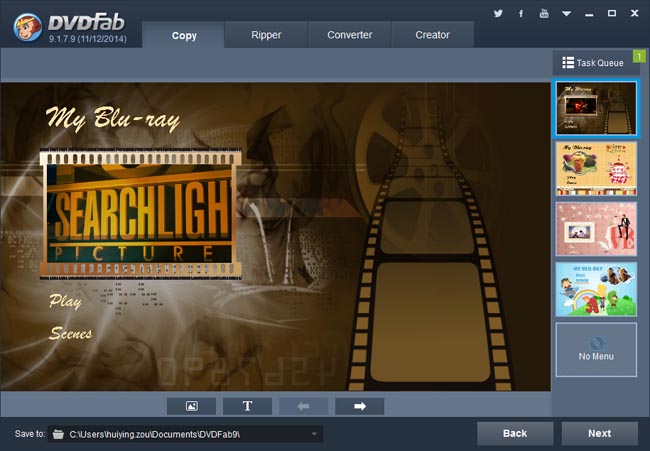
You will come to the following interface to create and customize the Blu-ray menu. Many built-in templates are available for your choice. If you want no menu playback experience, selecting “No Menu” on the right panel will do.
 
Step 4: Begin the copy process
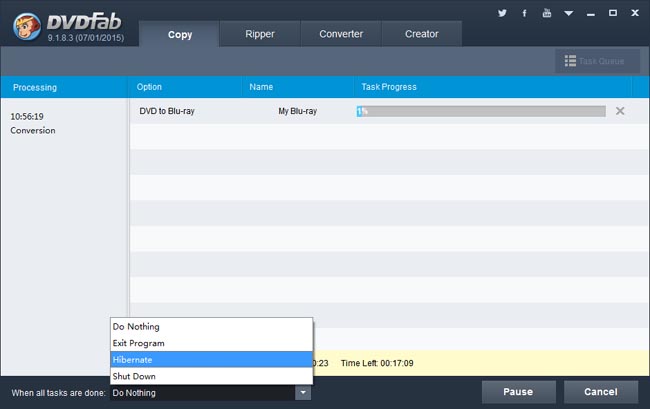
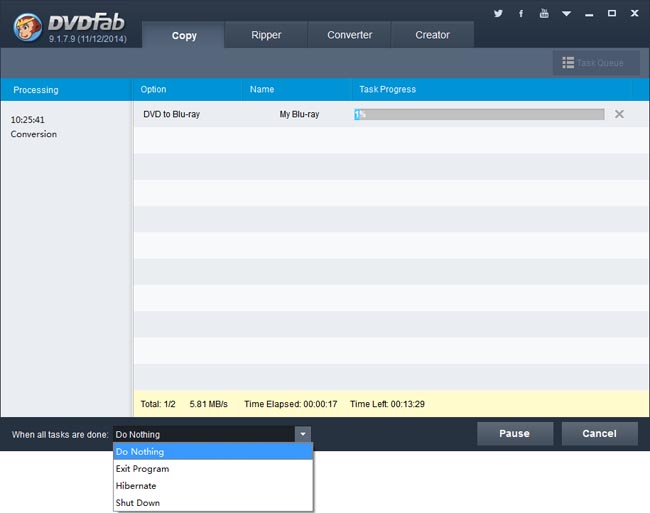
Now that all settings are OK, go back to the main interface to press Start button to start the copy process. You can view detailed progress info during the whole process, and you can also set your PC to shut down or hibernate when all tasks are done if you don’t want to wait.
 
OK. That’s all there is to it. For more info about DVDFab DVD to Blu-ray Converter please go to: www.dvdfab.cn/dvd-to-blu-ray-converter.htm

2015年4月2日星期四

DVD to Blu-ray Conversion

DVDFab DVD to Blu-ray Converter can merge and convert multiple DVDs into one Blu-ray for a easy playback or a neat backup. It’s very simple to do this DVD to Blu-ray conversion, in just a few of steps.
 
Step 1: Run DVD to Blu-ray Converter
Run DVDFab, go to Copy option. Click the default mode icon on the left panel to bring about all supported copy modes. Choose “To Blu-ray” to enable DVD to Blu-ray Converter.
 
Step 2: Load the DVDs and do initial settings
Load your DVD digital source by clicking the Add button on the main interface. Or drag the DVD files into the program. If you want to load physical DVD discs directly, please make sure you have the corresponding number of DVD drives connected to your computer according to how many DVDs you want to convert. Then insert these discs into the drives for DVDFab to load them. After they’re in, you are free to change the first/last chapter, audio and subtitles for them. Navigate to the left panel, and you should specify the output size/type as BD50 or BD25. Then go to the bottom of the interface, to choose a storage path. Note that the digital output can be saved as a folder or an image file, and if you want the output to be a Blu-ray disc, please connect a Blu-ray drive to your computer then select the drive here – in the Save to box.
 
Step 3: Create a Blu-ray menu
Click Next button all the way to the following menu creation interface. You can create and customize a Blu-ray menu for the output. If you don’t want any menu playback experience, just select “No Menu” on the right panel. Then click Next.
 
Step 4: Start conversion
After all settings are OK, you can press the Start button on the main interface to start conversion. During the process, you can view detailed progress info and set your PC to shut down or hibernate when all tasks are done.
 
OK. That’s all. More info about DVDFab DVD to Blu-ray Converter can be found at: www.dvdfab.cn/dvd-to-blu-ray-converter.htm

2015年4月1日星期三

Back up DVDs to a Blu-ray

If you have too many DVD files and you want to make them neat, or you want to put many DVD contents into one disc/file with original quality, you can use DVDFab DVD to Blu-ray Converter to back up many DVDs into one Blu-ray file or disc. Next let’s have a look at how to do this.
 
Step 1: Run DVDFab, Go to Copy Option, and Select “To Blu-ray”
After run DVDFab – Copy option, click the mode icon on the left panel to choose “To Blu-ray”. Now DVDFab DVD to Blu-ray has been enabled.
 
Step 2: Import the Source DVDs
If you happen to have many DVD drives, you can insert all the DVD discs you want to convert into the drives for DVDFab to load them. If not, you need to rip all the DVD contents first to your PC, then drag the backup files into the program. Seconds later, all the source contents will be in and the longest movie titles will be selected by default. You can choose other titles, set audio and subtitles and rearrange the first/end chapter of a title.
 
Go to the left panel to select BD25 or BD50 in the Output drop-down according to the output size you want. Move to the bottom “Save to” to specify a storage path for the output which could be a folder or an image file. If you want to burn the content into a physical Blu-ray disc, you just connect a Blu-ray drive to your PC and select the drive here.
 
Click Next button to confirm your selection.
 
Step 3: Create a Blu-ray Menu or Don’t
The above Next button will lead you to create and customize your favorite Blu-ray menu for the output Blu-ray. Many built-in templates are free for you to choose. You can also choose “No Menu” on the right panel and “Next” to skip this menu creation step.
 
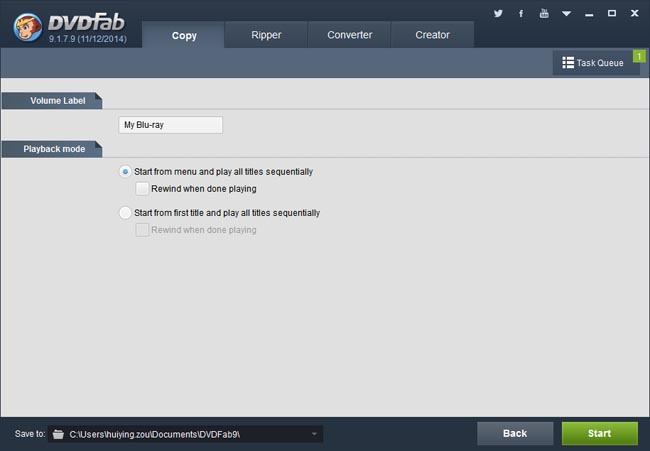
Now name the volume label and set the playback mode in the following window.
 
Step 4: Conversion
After all settings have been done, hit Start button on the main interface to start conversion. During the process, all detailed progress info can be viewed. And the PC can be set to shut down or hibernate when all tasks are done, and the program can be set to exit when that moment comes.
 
OK. Leave the rest to DVDFab now.
For more info about DVDFab DVD to Blu-ray Converter, please go to: www.dvdfab.cn/dvd-to-blu-ray-converter.htm