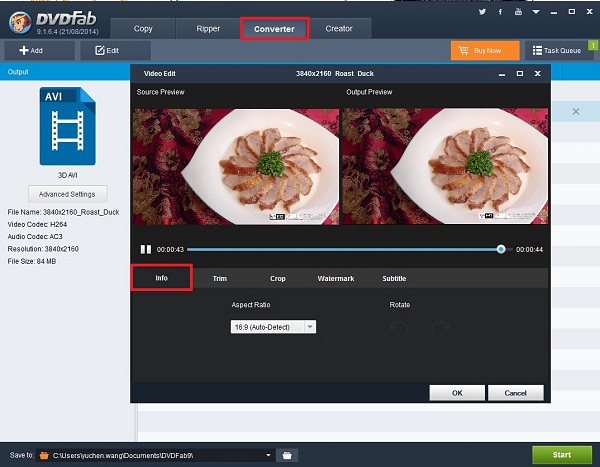
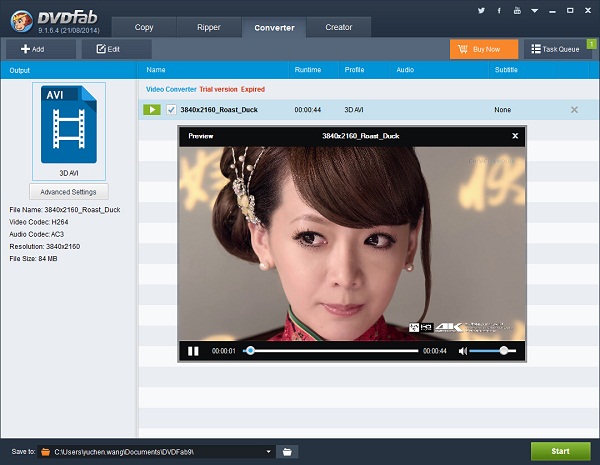
2014年12月8日星期一

How to Convert 2D Video to MKV 3D Video

DVDFab 2D to 3D Converter can be used together with DVDFab Video Converter to convert a 2D video to a 3D MKV video. It’s very simple, and the output 3D effect is fantastic. Next let’s dip into the following tutorial about how to do this conversion professionally with DVDFab 9.

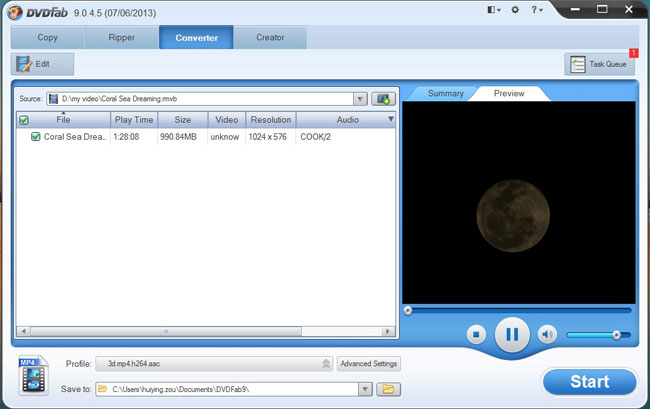
Step 1: Start up DVDFab 9, choose Converter option, and load in the source
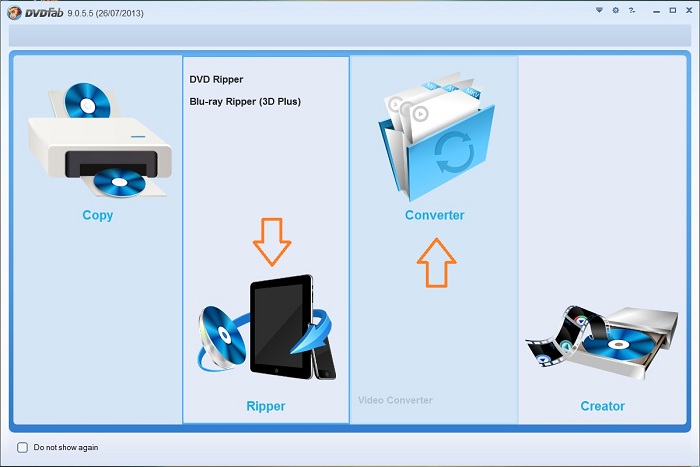
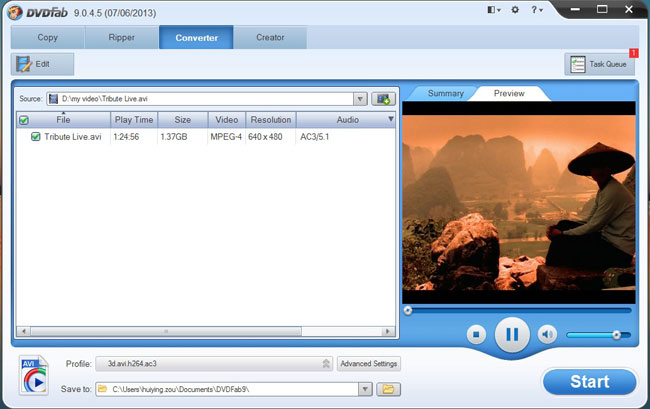
Start up DVDFab 9, choose Converter option to open Video Converter. Then drag and drop the video you want to convert into the program.
Step 2: Choose a mkv profile
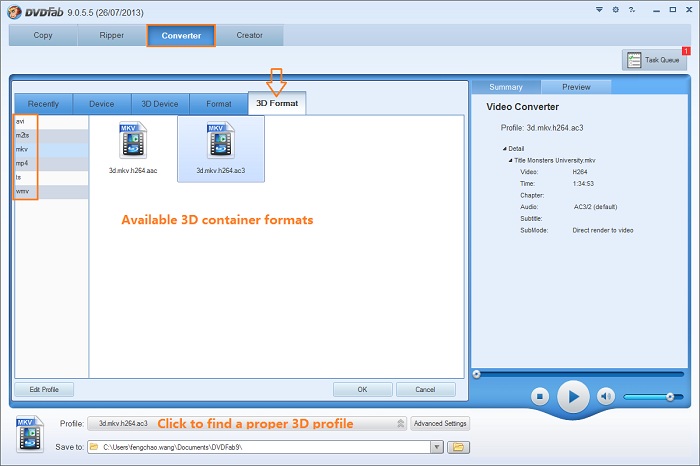
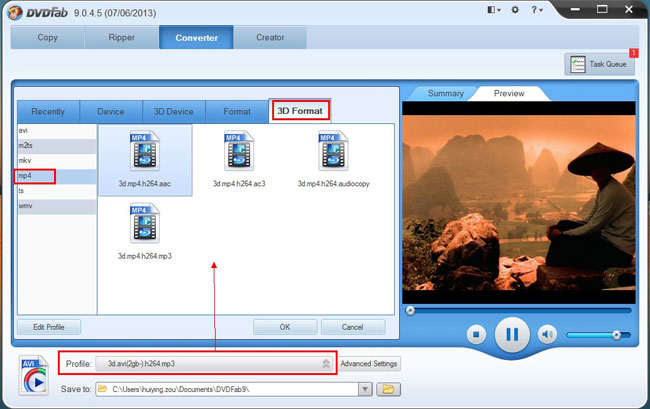
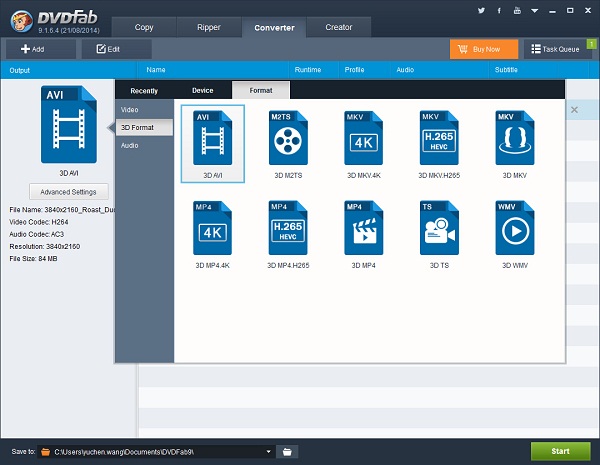
Open Profile box to navigate to 3D Format (now 2D to 3D Converter is activated), to mkv, then choose your favorite profile.
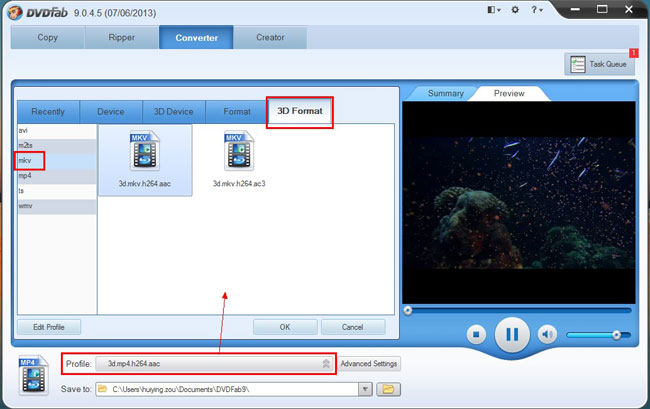
Step 3: Set 3D format and effect
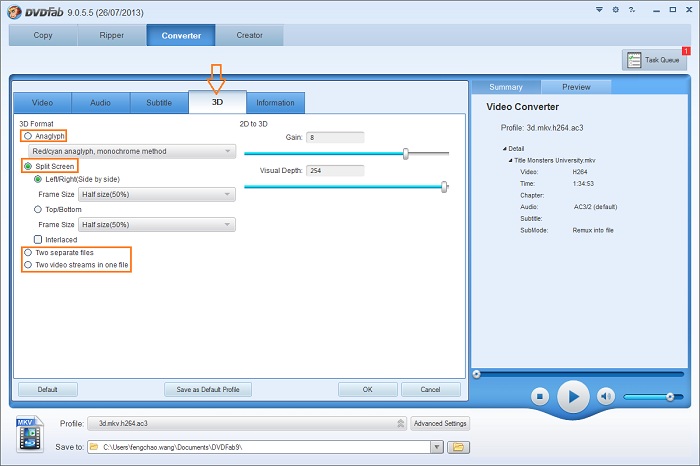
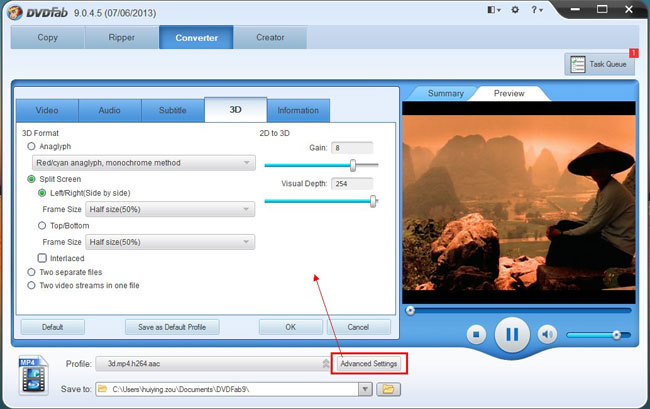
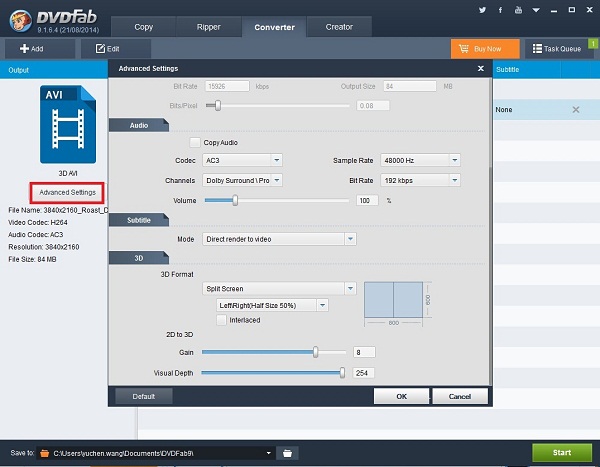
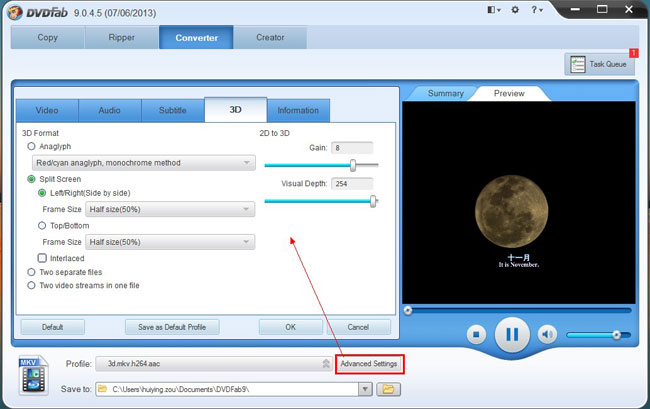
Click Advanced Settings button on the main interface, then go to 3D tab to set the 3D as anaglyph 3D, side-by-side 3D, or other 3D formats according to your need. You can also change the Gain and Visual Depth of the 3D here.
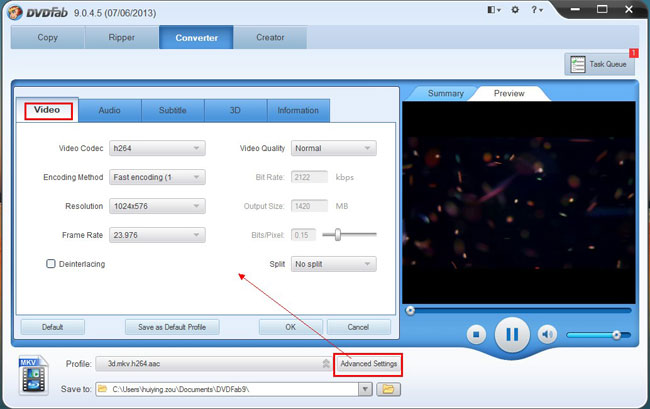
Switch to Video tab then you can set all video parameters, and to Audio tab for audio parameters settings.
Step 4: Start conversion
Now click Start button to start conversion. You can monitor everything about progress during the whole process.
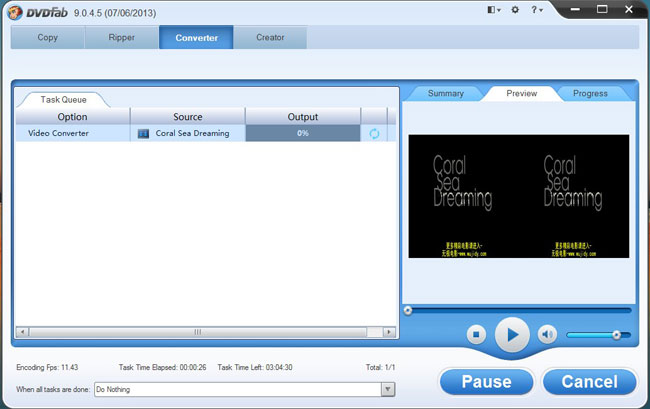
Alright. Just let DVDFab 9 do the rest. More info about 2D to 3D Converter can be found at: www.dvdfab.cn/2d-to-3d-converter.htm

2014年12月7日星期日

How to Convert 2D Video to Anaglyph 3D Video


DVDFab 2D to 3D Converter can convert 2D videos to anaglyph 3D videos for users to watch with anaglyph 3D glasses. However, it must work with DVDFab Video Converter to do this. It’s very easy that the whole process can be finished with a couple of steps and all customization can be done with a few of mouse clicks. Now let’s have a look at how to convert 2D video to anaglyph 3D video with DVDFab.

Step 1: Start up DVDFab 9, choose Converter option and load in the source
Start up DVDFab 9 and choose Converter option to come to the interface of Video Converter. Now drag and drop the video on your PC into this program.

Step 2: Choose a profile for the output
Open Profile box to navigate to 3D Format and DVDFab 2D to 3D Converter is activated now. You can see all supported 3D video formats. Just choose the format you prefer. Then select your favorite profile.

Step 3: Set anaglyph 3D effect and more
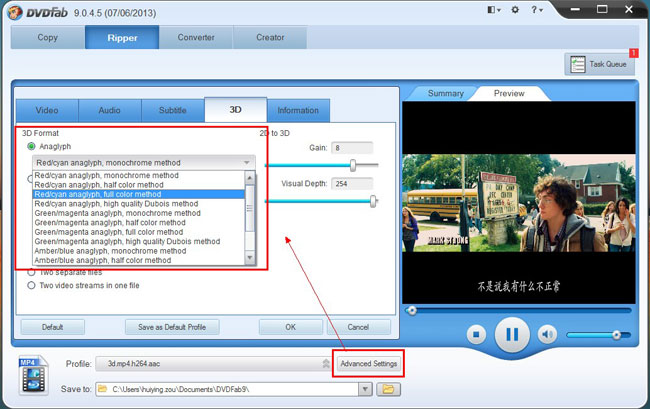
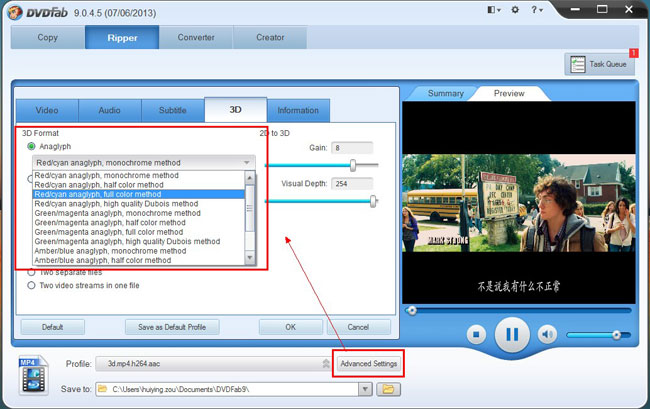
Click Advanced Settings button to bring about all parameters of 3D, video and audio. Click 3D tab to choose Anaglyph as the 3D format. There’re many anaglyph 3D modes, just choose according to the anaglyph 3D glasses you’re going to use. You can also switch to Video tab to set video parameters and Audio tab to set audio parameters.

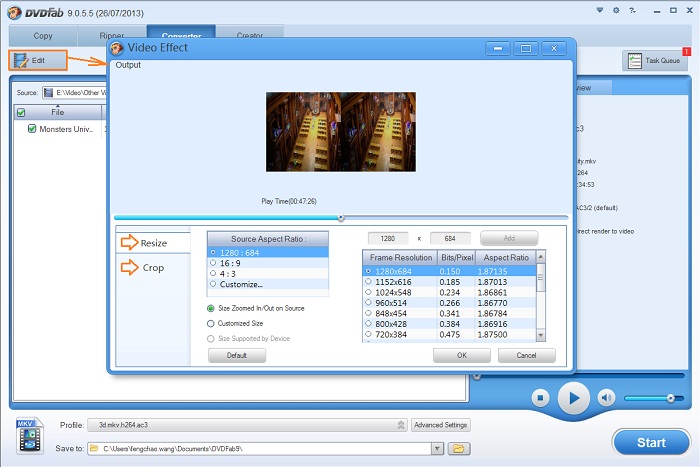
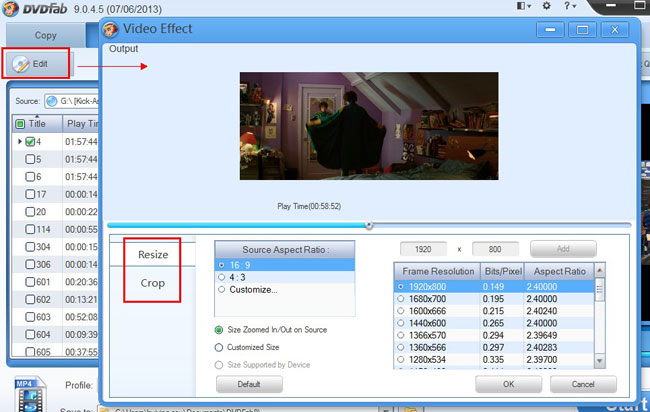
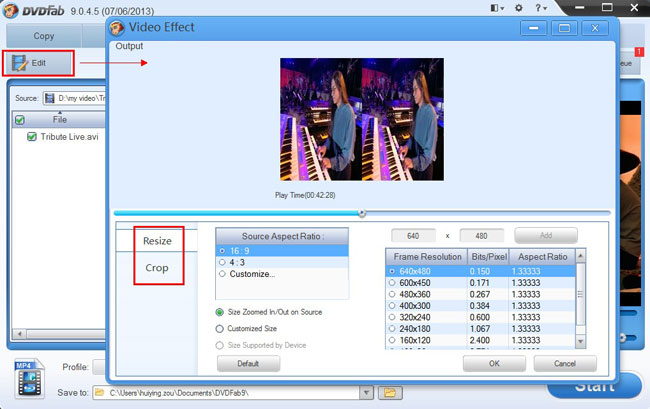
Click Edit button on the main interface to open Video Effect window where you can resize and crop the video for display.

Step 4: Start conversion
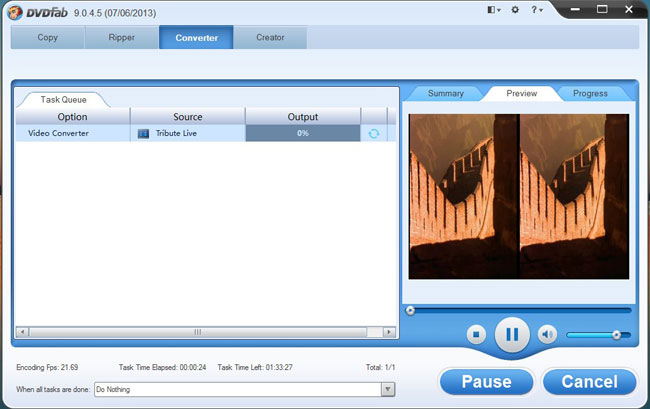
After preview the title in real time and make sure that all settings are OK, just click Start button to start conversion. During the process, you can view all detailed progress info and even preview the progress with real time images.

OK. Now leave the rest to DVDFab 9. More info about DVDFab 2D to 3D Converter, go to:http://www.dvdfab.cn/2d-to-3d-converter.htm
2014年12月5日星期五

How to Convert 2D Blu-ray to Side-By-Side 3D

You have professional 3D glasses but not enough 3D videos to enjoy? Just use DVDFab 2D to 3D Converter and Blu-ray Ripper (3D Plus) to convert 2D Blu-rays to side-by-side 3D videos for great 3D effect. Get started with this simple tutorial and try out yourself. It’s darn easy.

Step 1: Start up DVDFab 9, choose Ripper option and load in the source
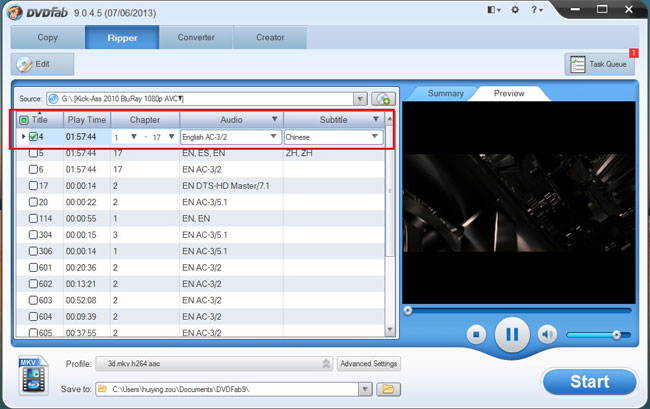
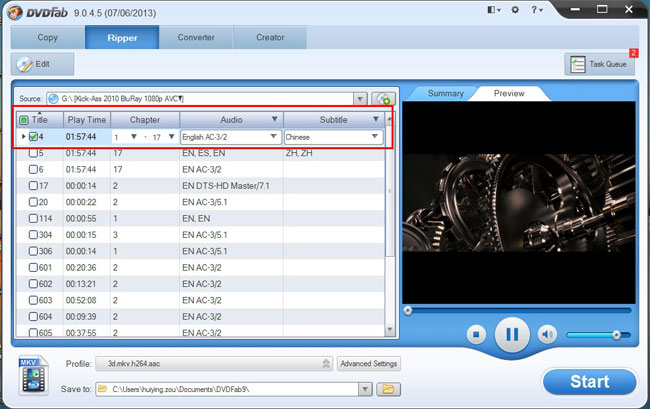
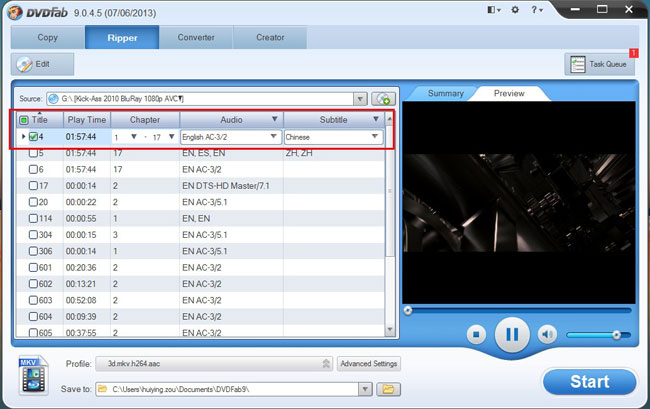
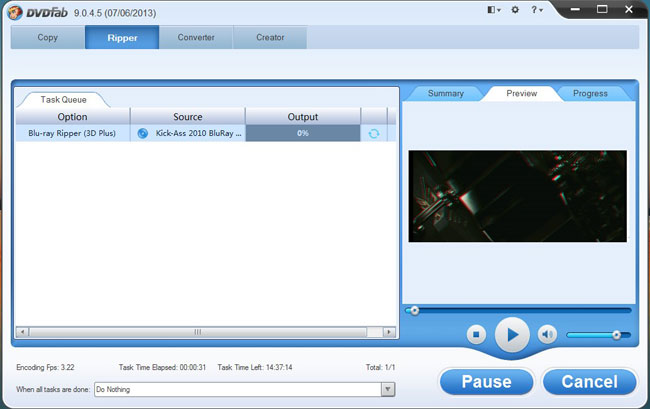
Start up DVDFab 9 and choose Ripper option. And you can see the main interface of Ripper. Insert BD into Blu-ray drive for DVDFab to load it in.

Step 2: Choose a profile for the output 3D
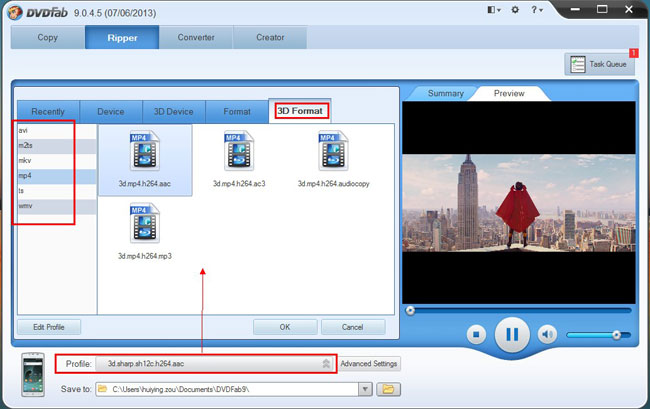
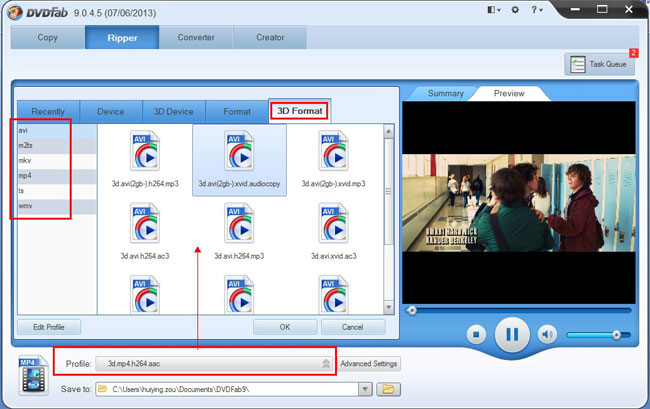
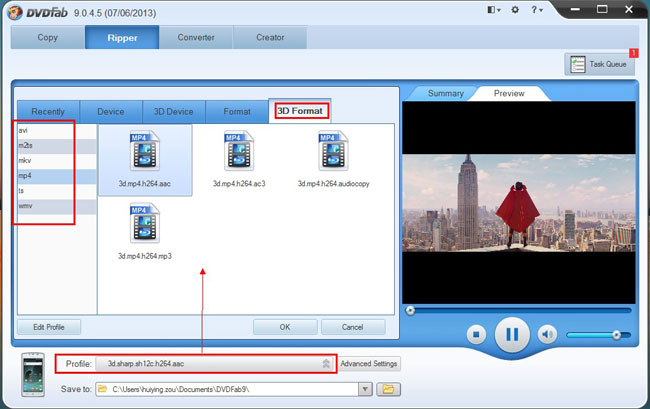
Open Profile box to navigate to 3D Format (supported by 2D to 3D Converter). Then you can see all supported 3D formats and profiles. Just choose your favorite profile.

Step 3: Set 3D format to be side-by-side
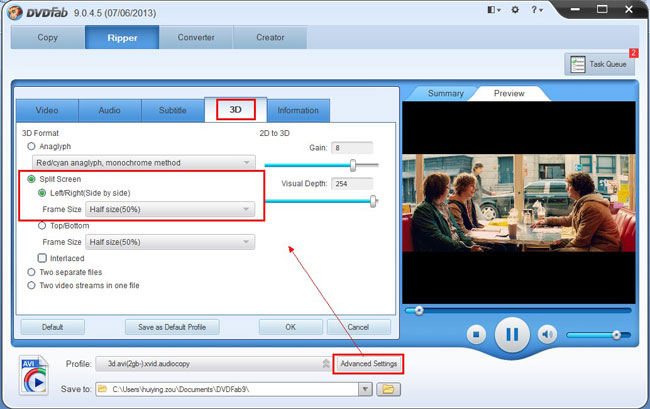
Click Advanced Settings button on the main interface, go to 3D tab, then choose side-by-side 3D as the 3D Format. Besides, you can set the 3D effect by changing the Gain value and Visual Depth. You can also go to the Video tab and Audio tab to set video and audio parameters.

OK. After all these settings, you can go to set video effect by clicking Edit button on the main interface.

Step 4: Start conversion
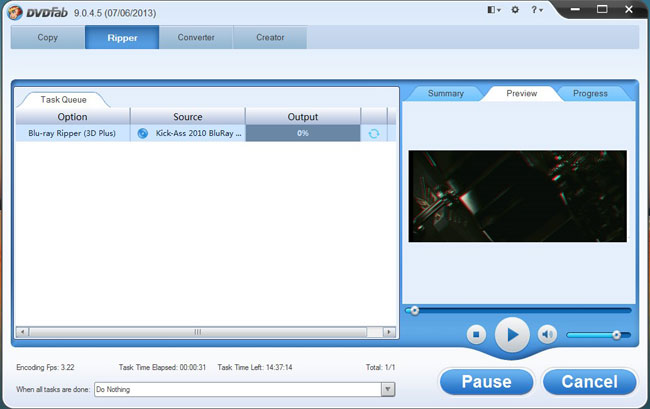
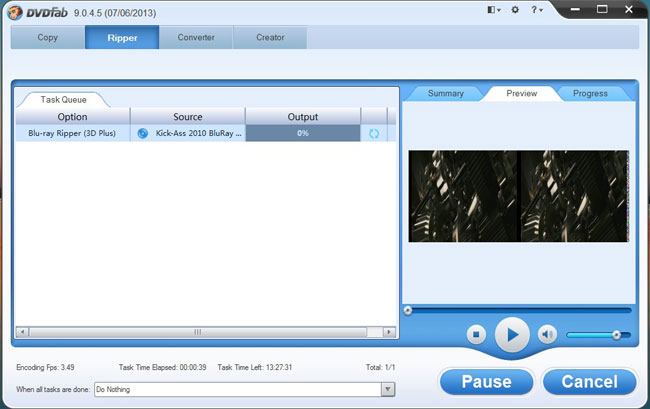
Hit Start button to start conversion. During the process, you can view all detailed progress info and preview the progress with real time images.

OK. Done.

2014年12月4日星期四

How to Convert 2D Video to FLV 3D Video

Due to the lower resolution of FLV video format, the redesigned DVDFab 9 has removed the support to convert any video into 3D FLV video. We recommend selecting other available formats, like MKV, or MP4 to convert. Partnered with DVDFab Video Converter, DVDFab 2D to 3D Converter can convert all your 2D videos into 3D videos in a couple of formats, like side-by-side 3D, anaglyph 3D, two separate files, and even two video streams in one file, to play on 3D armed computers, 3D TVs, glasses-free 3D smartphones, or other compatible 3D devices. That’s why 2D to 3D Converter is regarded as the best 2D to 3D video converter software.

The tip below is to teach you how to convert your videos into 3D videos.

Turn 2D Video into 3D Video> Step 1: Download and install the latest DVDFab 9 onto your computer;

Turn 2D Video into 3D Video > Step 2: Launch DVDFab 9, choose Converter option at the Option Interface (or from the Option Bar at the Main Interface), then load the to-be-converted 2D videos from your PC HDD;


Turn 2D Video into 3D Video > Step 3: Click the Profile Box (or Profile Icon) which takes you to DVDFab Built-in Profile Library, and then select one profile from the “3D Format” column,for example, “3d.mkv.h264.ac3” from MKV section;


Turn 2D Video into 3D Video > Step 4: Click “Advanced Settings” button behind the Profile Box to do corresponding settings regarding to video, audio, subtitle and 3D Format;


Sidenote: click 3D tab, you can choose one 3D format from the available options, side-by-side 3D, anaglyph 3D, two separate files, and even two video streams in one file.

Turn 2D Video into 3D Video > Step 5: Click the “Edit” button at the top right corner of Operation Window if you want to customize the resulting 3D video. After you have done here, return to the main interface to “Start” the converting process.


Software you need: The latest build of DVDFab 9
Product you need order: Video Converter and 2D to 3D Converter

For more info, please go to: www.dvdfab.cn/video-converter.htm

2014年12月3日星期三

How to Convert 2D Blu-ray to Anaglyph 3D

If you have a pair of anaglyph 3D glasses and want to view a 2D Blu-ray with 3D effect, just use DVDFab 2D to 3D Converter and Blu-ray Ripper (3D Plus) to convert the Blu-ray into an anaglyph 3D video. It’s very easy while professional. Please follow me to have a look at this tutorial about how to convert Blu-ray to anaglyph 3D.

Step 1: Start up DVDFab 9, choose Ripper option, load in the source
Start up DVDFab 9, then choose Ripper option. After Ripper interface appears, just load in the Blu-ray source by inserting disc into Blu-ray drive or by dragging and dropping the Blu-ray file from your PC to the program.

Step 2: Choose a profile for the 3D output
Open Profile box to navigate to 3D Format (now we’re using DVDFab 2D to 3D Converter), then you can see all the 3D video formats supported here. Just choose your favorite format option and select a profile for the output.

Step 3: Choose an anaglyph mode for the 3D
Now click Advanced Settings button to go to the 3D tab. Choose Anaglyph for the 3D Format. There’re multiple anaglyph modes, just choose the one according to your anaglyph glasses and other specific requirements. And you can also slide to change Gain value and Visual Depth for the 3D effect here. Change to Video tab to set video parameters and to Audio tab to set audio parameters if you’d like.

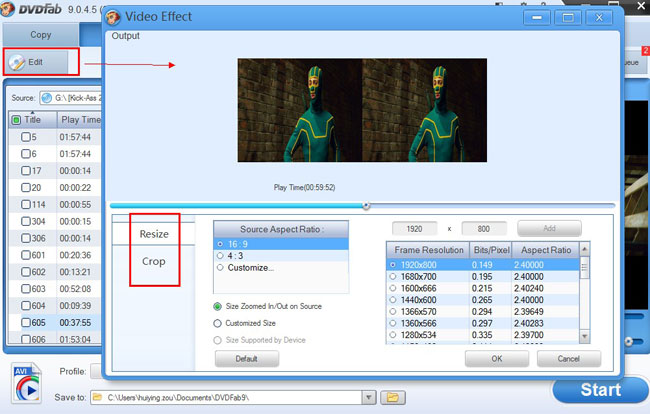
BTW, click Edit button on the main interface to resize the source aspect ratio and frame resolution of the video, or to crop the image for display.

Step 4: Start conversion
Click Start button to start conversion. During the process you can view detailed progress info and preview the progress with real time images.


2014年12月2日星期二

How to Convert 2D Video into 3D MP4 Video

DVDFab 2D to 3D Converter can work with DVDFab Video Converter to convert 2D videos to 3D videos in different formats, including MP4 of course. Next let’s have a look at how professional and powerful DVDFab 2D to 3D Converter is via the following step-by-step tutorial about how to convert 2D video to 3D MP4.

Step 1: Start up DVDFab 9, and load in video source into Video Converter
Start up DVDFab 9 then choose Converter option to open Video Converter. Now load the video source you want to convert into the program.

Step 2: Open Profile Box to choose a profile for output
Now open the Profile Box to go to 3D Format (now we’re using DVDFab 2D to 3D Converter), then navigate to mp4 on the left panel. Now select a MP4 profile you prefer.

Step 3: Set 3D format and effect
Click Advanced Settings button and choose 3D tab to set 3D format and effect. You can also choose Video tab to set video parameters, Audio tab to set audio parameters, etc.

You can also click Edit button on the main interface to open Video Effect window where you can resize source aspect ratio and frame resolution of the video, and crop the image for display.

Step 4: Start conversion
Hit Start button to start conversion. During the process you can view detailed progress info and monitor everything.

OK. Now leave the rest to DVDFab 9. More info about DVDFab 2D to 3D Converter, just go to:http://www.dvdfab.cn/2d-to-3d-converter.htm
2014年12月1日星期一

How to Convert 2D Video to 3D AVI

Want to view your 2D videos on your 3D devices with 3D effect? Just convert them to 3D videos. DVDFab 2D to 3D Converter, when works with DVDFab Video Converter, can convert 2D videos into various 3D videos. Now let’s take 3D AVI for example. Please follow me to the tutorial about how to convert 2D video to 3D AVI.

Step 1: Start up DVDFab 9, choose Converter option, and load in the video
Start up DVDFab 9, then choose Converter option. Now we’re coming to the Converter interface. Just drag and drop the video on your PC into DVDFab.

Step 2: Choose a profile for 3D AVI
Open Profile menu to go to 3D Format and now DVDFab 2D to 3D Converter is activated. Then click avi to bring about all supported profiles for 3D AVI. Just one the one you like.

Step 3: Customize 3D effect and video effect
Click Advanced Settings button. Go to 3D tab, you can set 3D format and effect. Go to Video and Audio, then you set all video parameters and audio parameters.

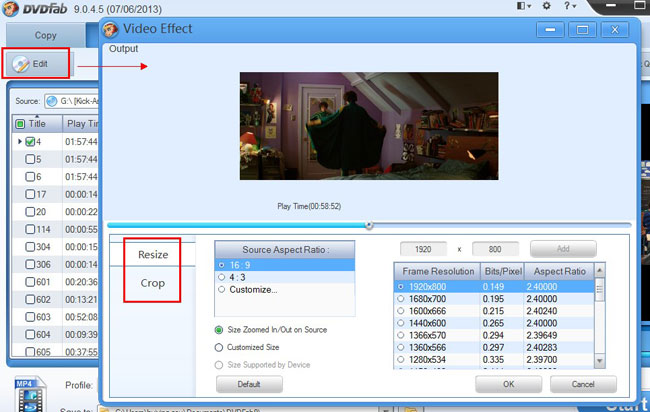
Back to the main interface to click Edit button to open Video Effect window, where you can resize the source aspect ratio and frame resolution of the video, and you can also crop the image for display on your 3D devices.

Step 4: Start conversion
Hit Start button to start conversion after you preview the title to make sure all settings are OK. During the whole process, you can always see detailed progress info and preview the progress with real time images from the video.

Alright. Now leave the rest to DVDFab 9. For more info about 2D to 3D Converter, just go to:http://www.dvdfab.cn/2d-to-3d-converter.htm